GenAI Chatbot
Introduction
GenAI Chatbot is a next-generation conversational AI assistant designed to provide natural, context-aware interactions.
It utilizes efficient Small Language Models (SLMs) and supports direct import of models fine-tuned within GenAI Studio, enabling easy deployment and immediate use of custom models.
The chatbot features advanced capabilities, including:
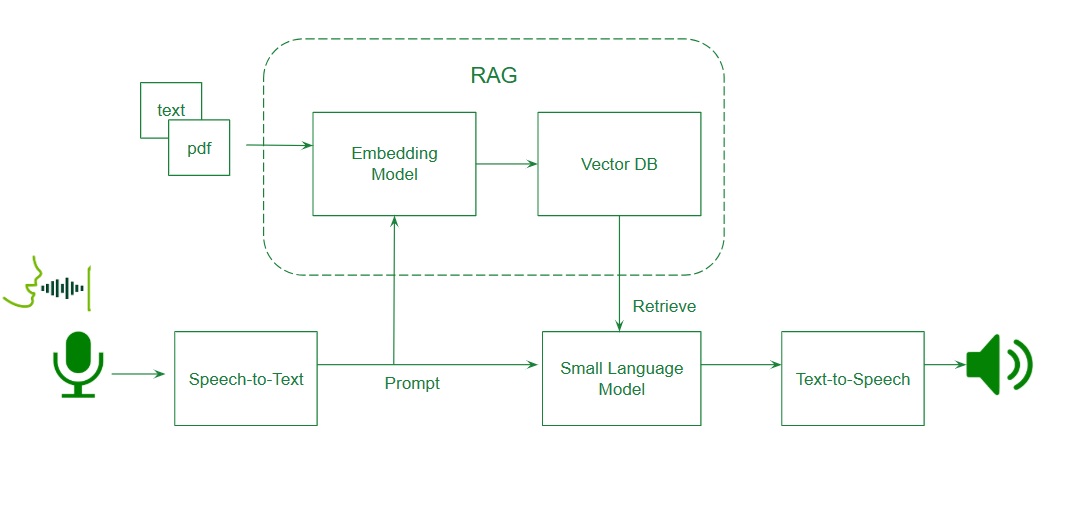
- Audio processing (Speech-to-Text [STT] using faster-whisper-base and Text-to-Speech [TTS])
- Retrieval-Augmented Generation (RAG)
- Embedded vector database (VectorDB) using
ChromaDBwith the embedding model all-MiniLM-L6-v2 - Model Context Protocol (MCP)
GenAI Chatbot is optimized for embedded platforms, including Qualcomm IQ9075, Ryzen AI 8000, NVIDIA Jetson Orin Nano, NVIDIA Jetson AGX Orin, NVIDIA Jetson Thor, and Intel Panther Lake.
| Vendor | Download Models | Delete Models | GenAI Studio | RAG | TTS | Evaluate | MCP Tools |
|---|---|---|---|---|---|---|---|
| Nvidia | Guide | Guide | ✅ | ✅ | ✅ | ✅ | ✅ |
| AMD | Guide | Guide | ❌ | ✅ | ✅ | ✅ | ✅ |
| Qualcomm | ❌ | ❌ | ❌ | ✅ | ✅ | ✅ | ✅ |
| Intel | ❌ | ❌ | ❌ | ✅ | ✅ | ✅ | ✅ |
- ✅:Supported
- ❌:Not supported
Small Language Model
Download Models from Ollama (Support Device: NVIDIA)
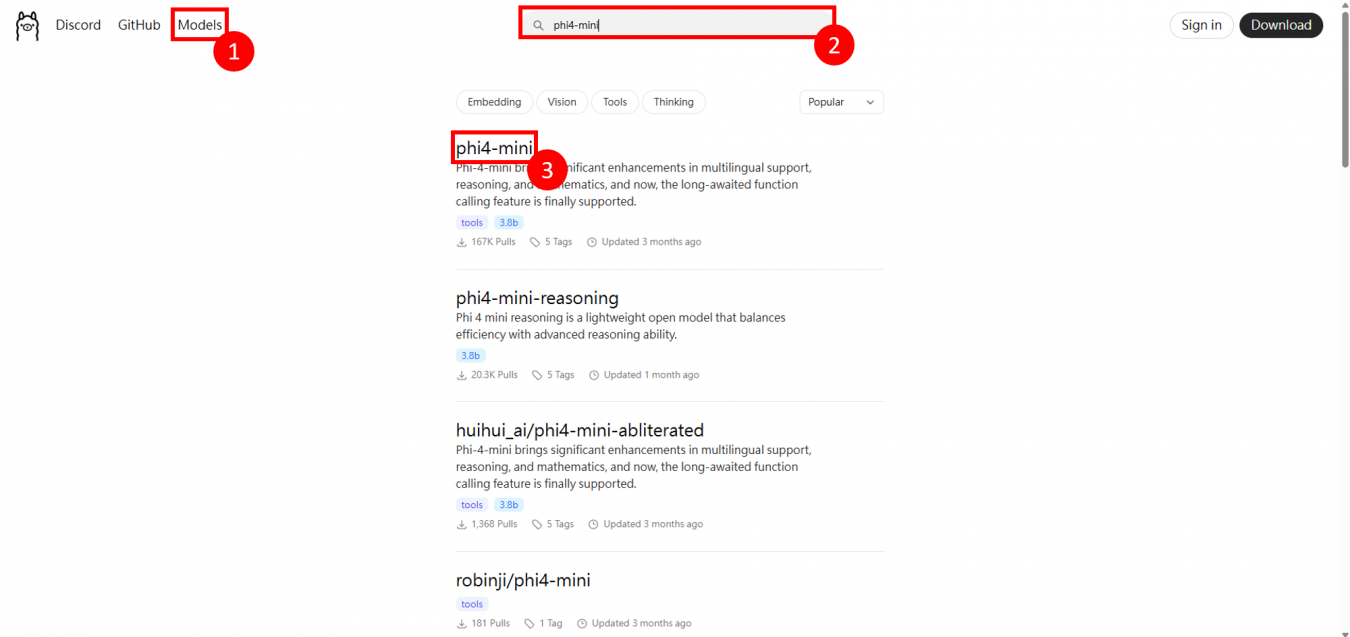
- Visit https://www.ollama.com/search and click Models.
- Use the search bar to find the desired model.
- Note the model name.
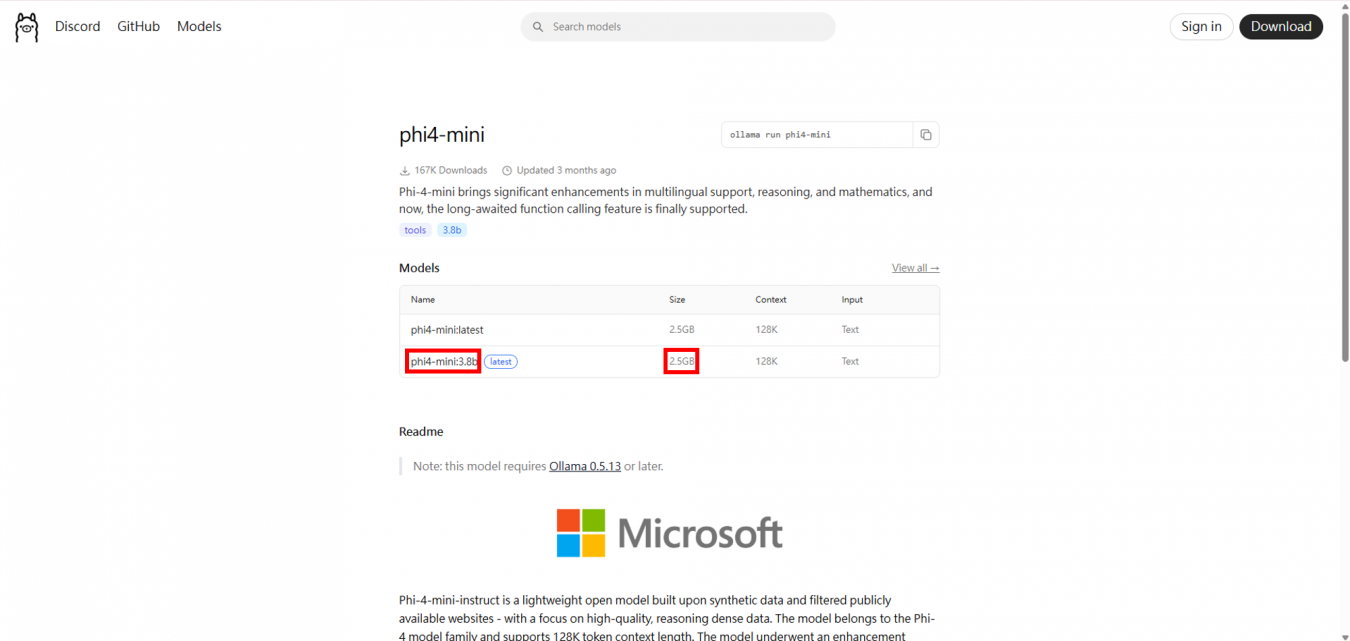
- You’ll see the model name and version.
- Model size depends on hardware resources.
- Ensure compatibility with your device.
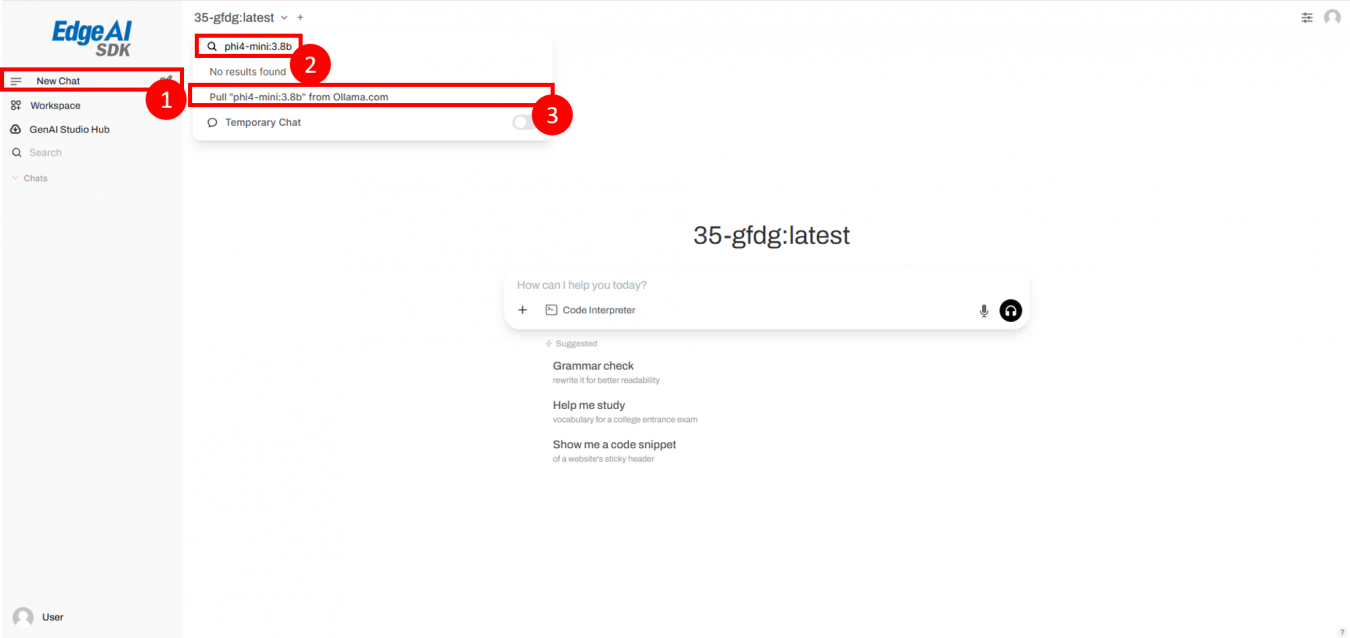
- In GenAI-Chatbot, create a new chat window.
- Enter the model name and click Download.
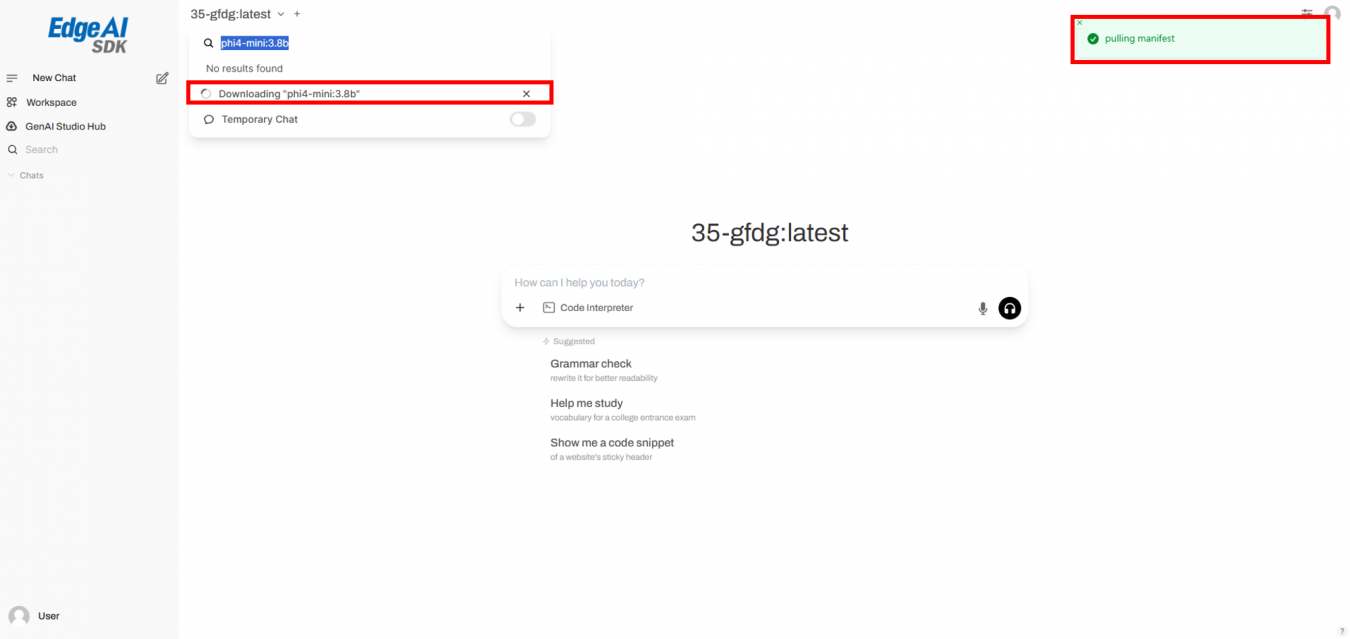
- A notification will confirm the download.
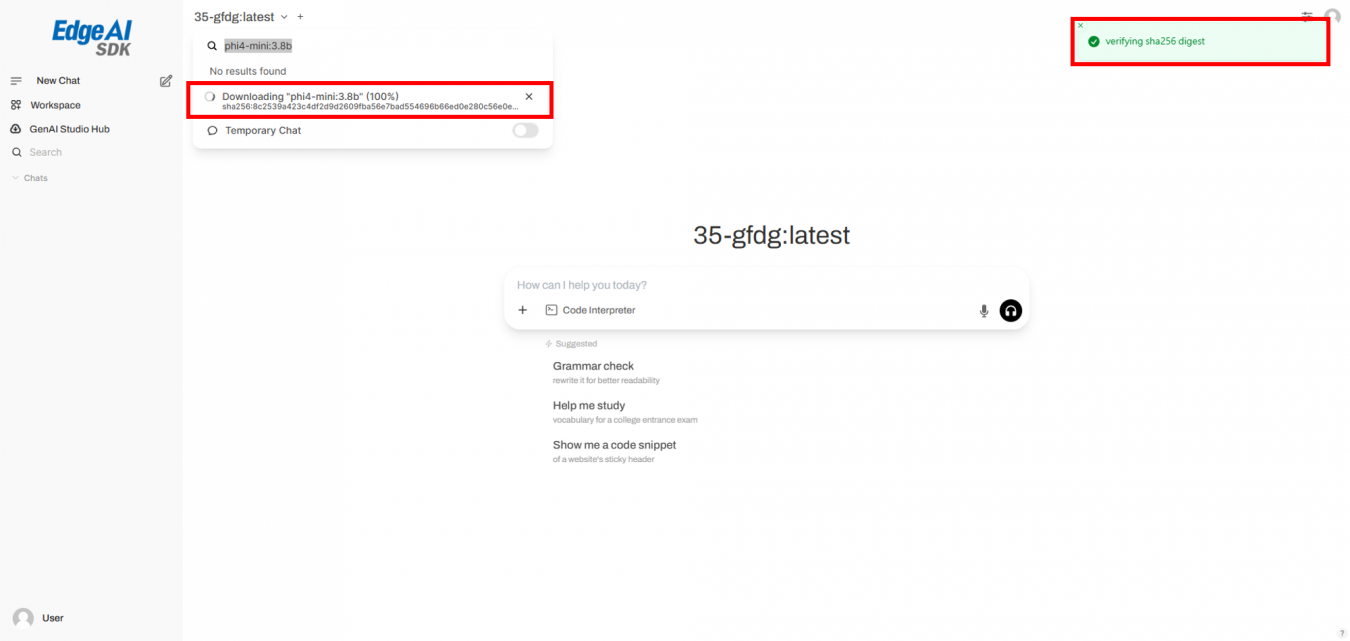
- Once completed, you’ll see a confirmation message.
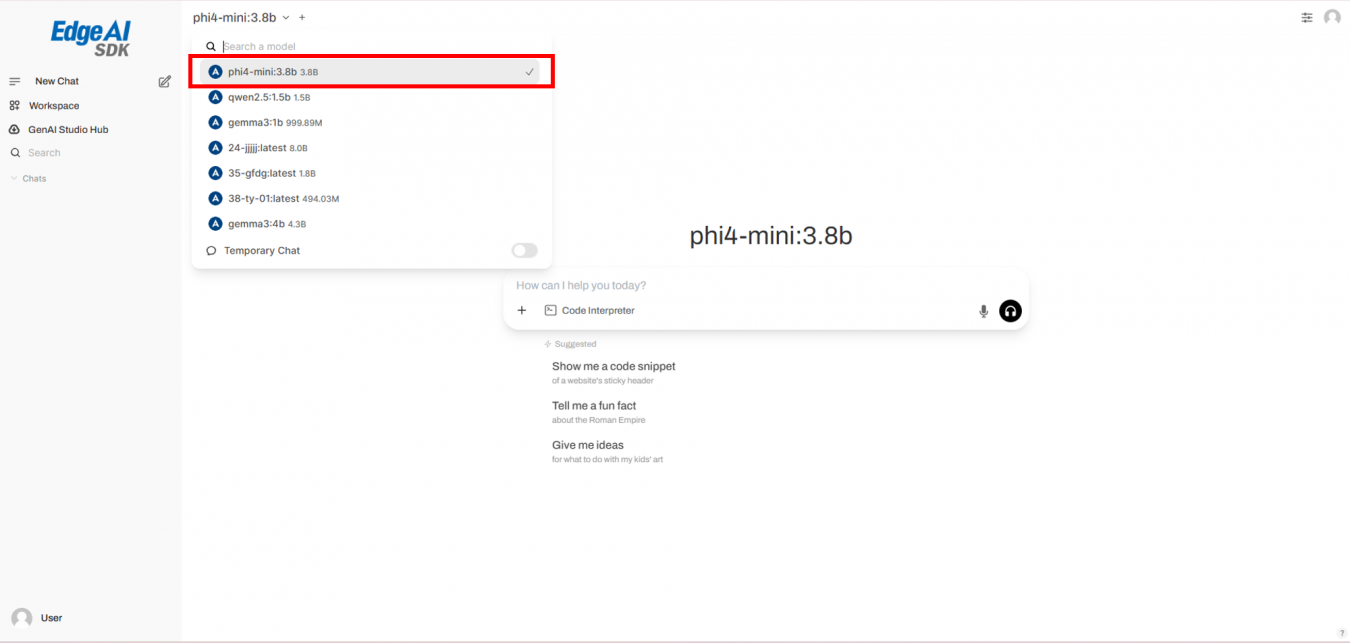
- The model now appears in the selection menu.
Delete Models (Support Device: NVIDIA)
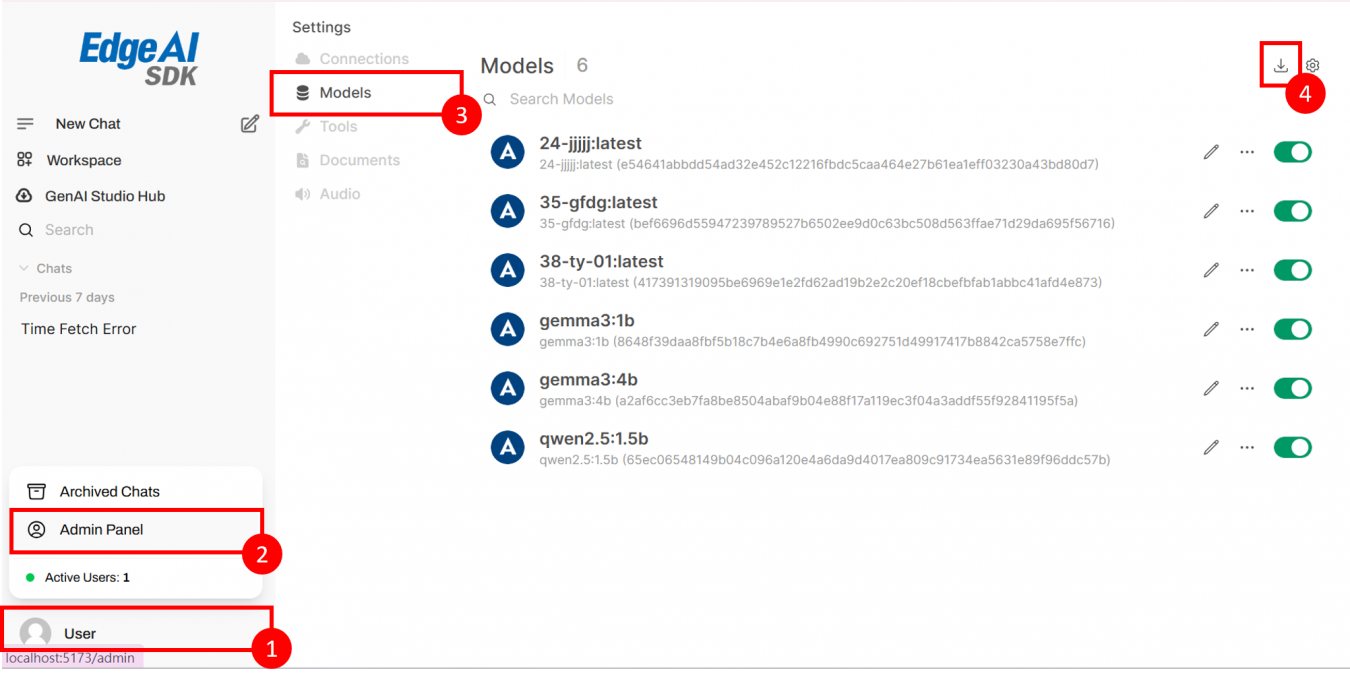
- Click User → Admin Panel.
- Open Settings → Models.
- Click the download icon.
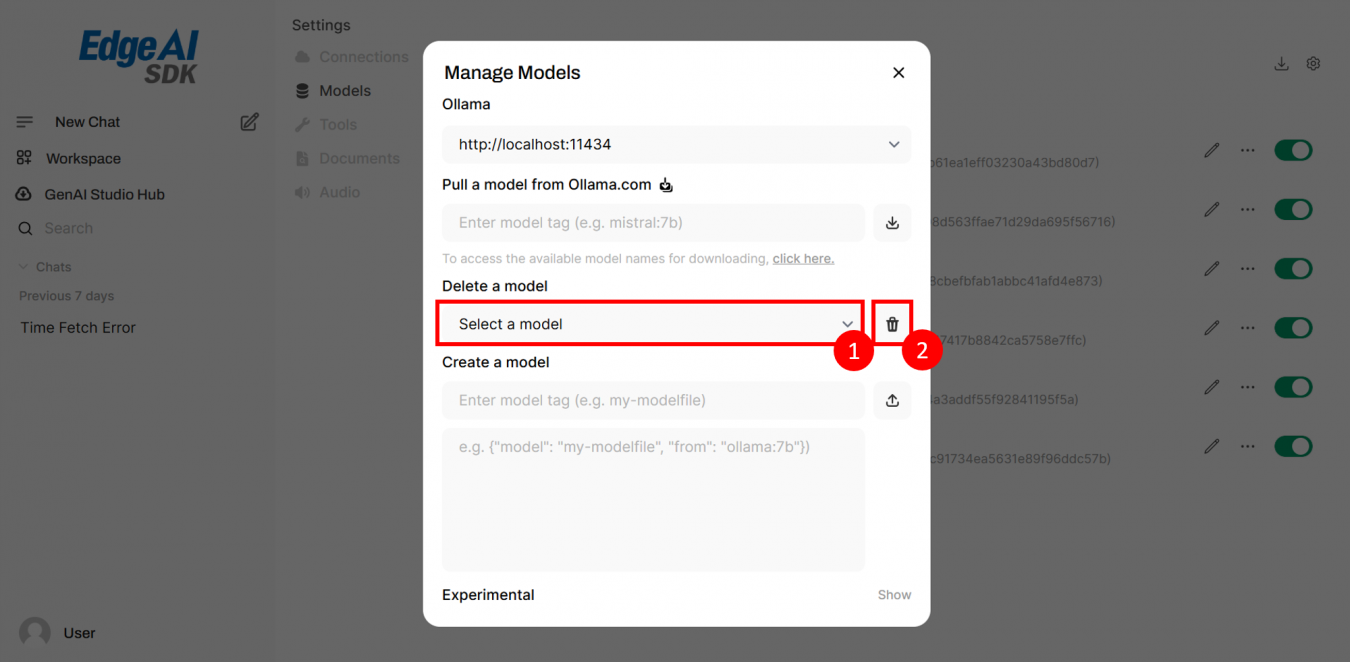
- Select the model to delete → Click Delete.
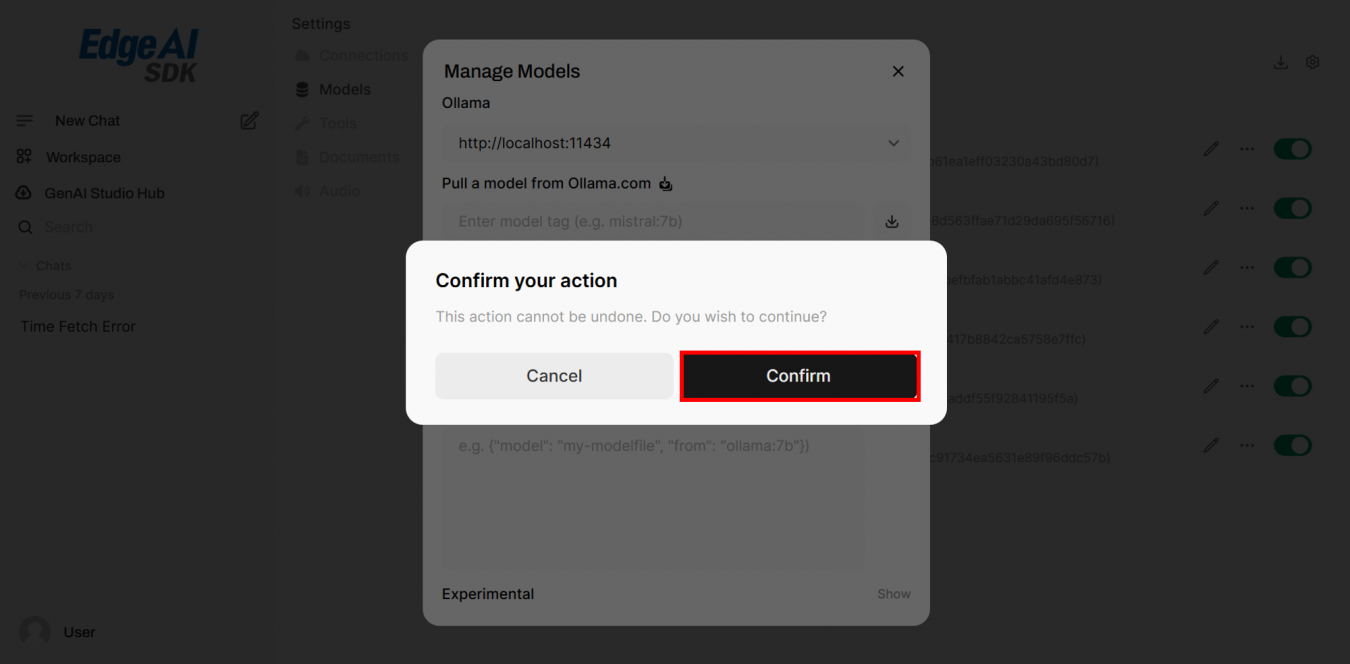
- Click Confirm.
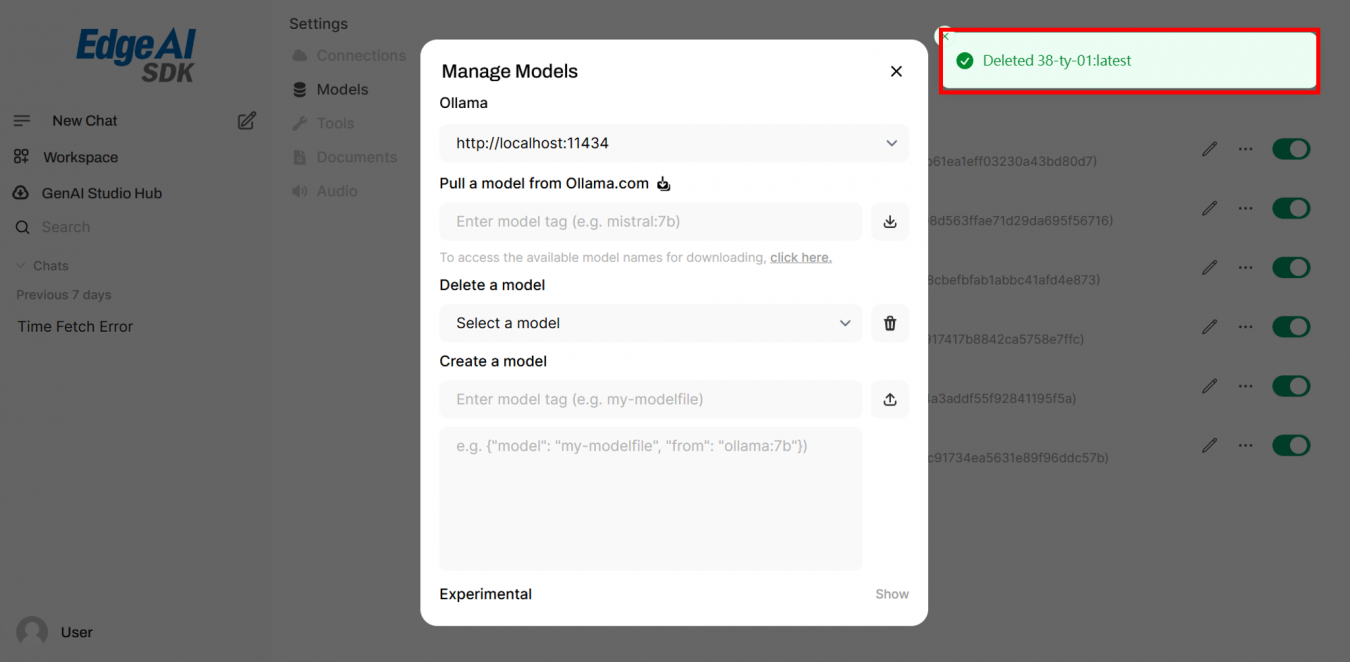
- A success notification will appear.
Download Models from GenAI Studio
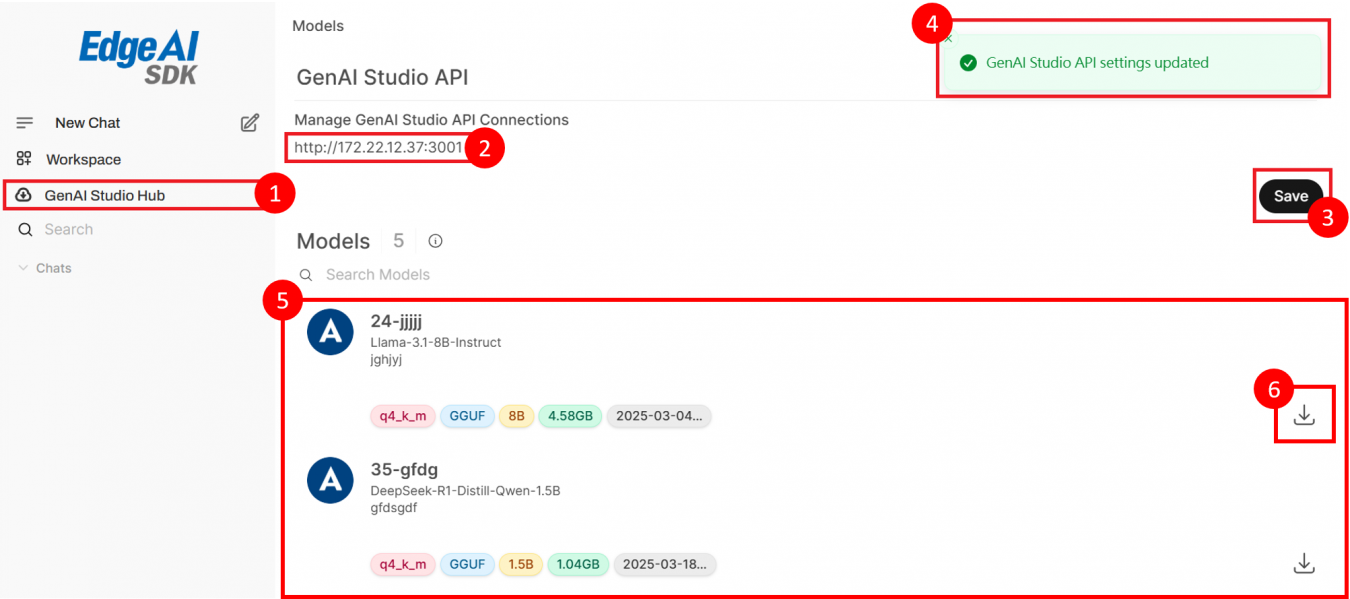
- Open GenAI Studio Hub from left menu.
- Enter the URL of your GenAI Studio.
- Click Save.
- A confirmation message appears.
- All available models will display.
- Click Download for the model you want.
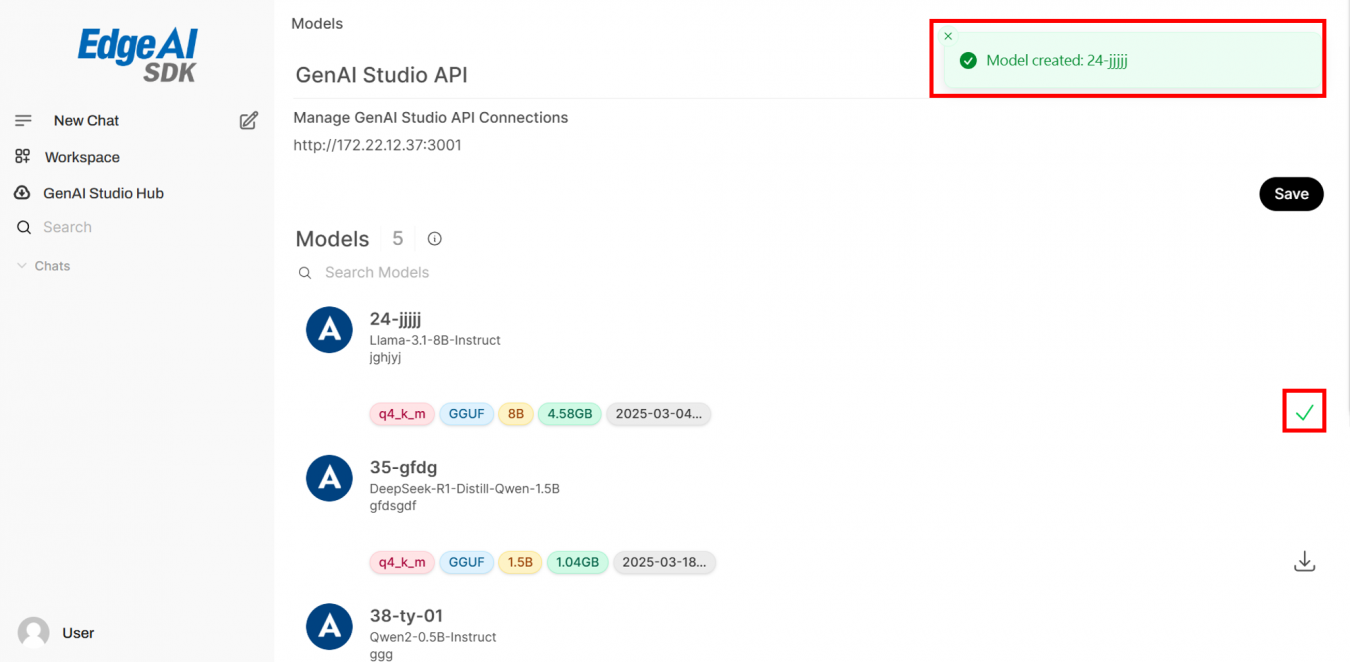
- After download, a success message appears.
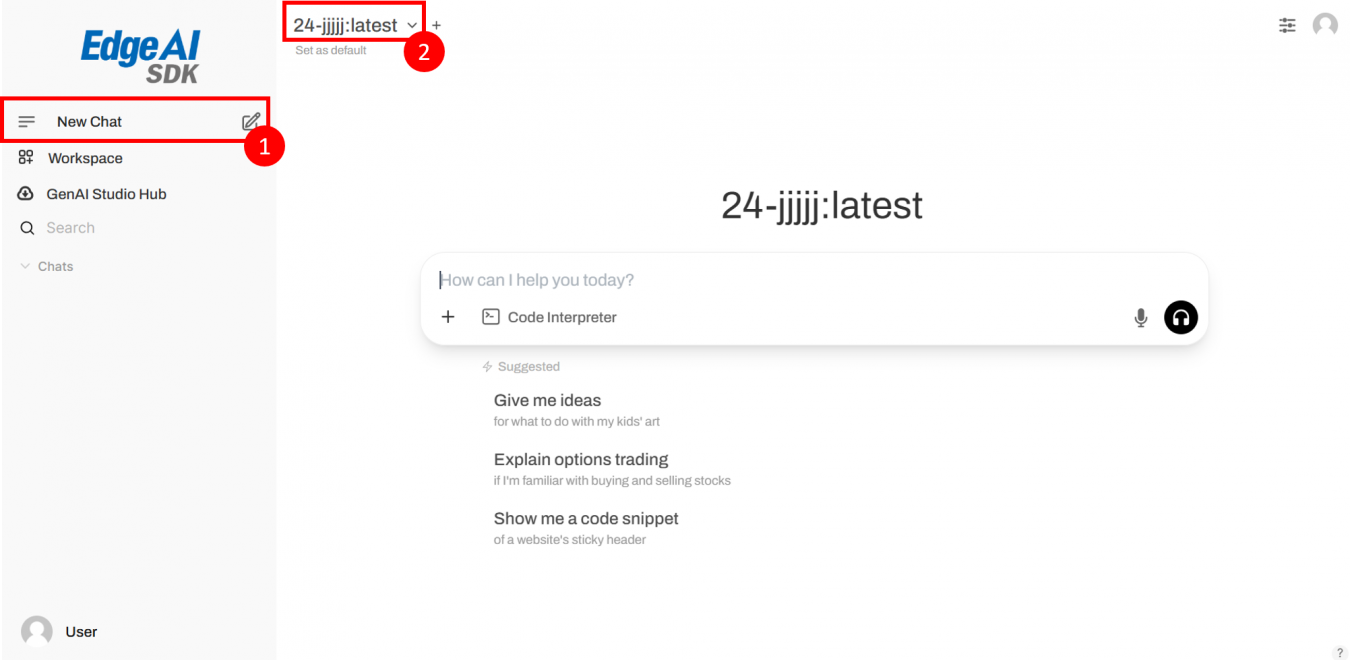
- You can now select this model in a new chat.
Create a new Knowledge (RAG)
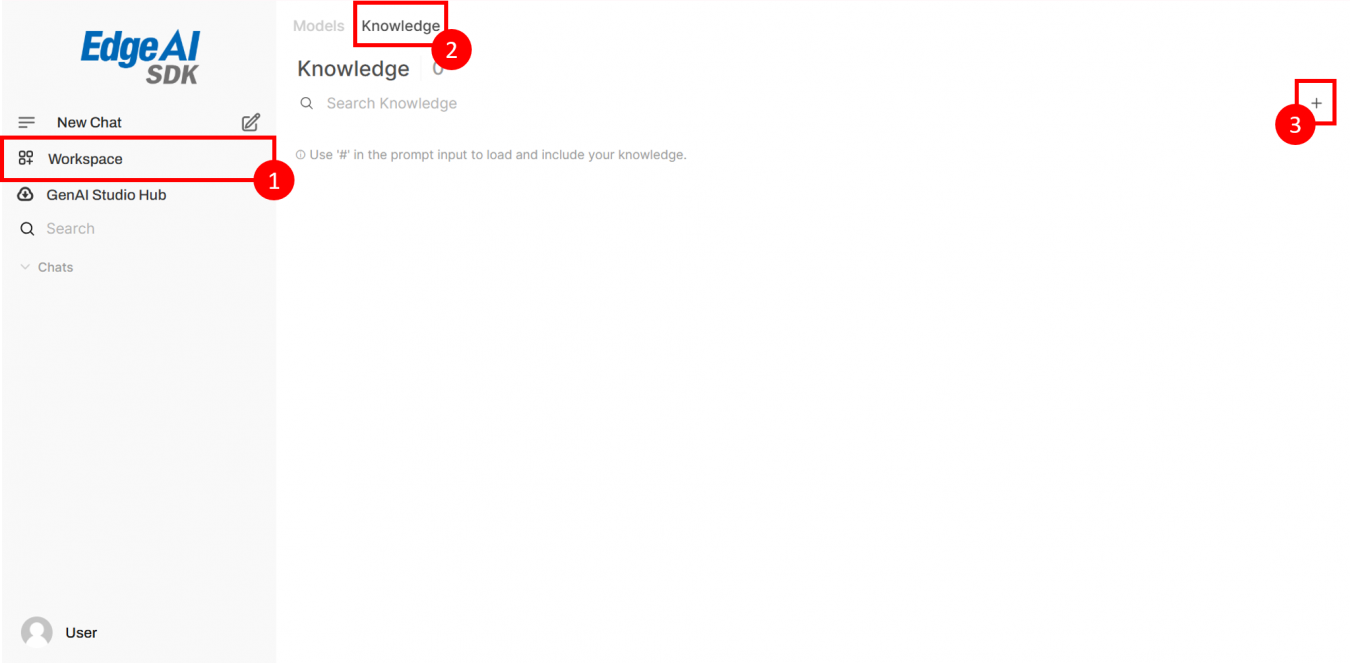
- Go to Workspace → Knowledge.
- Click the + icon to add new knowledge.
Sample files:
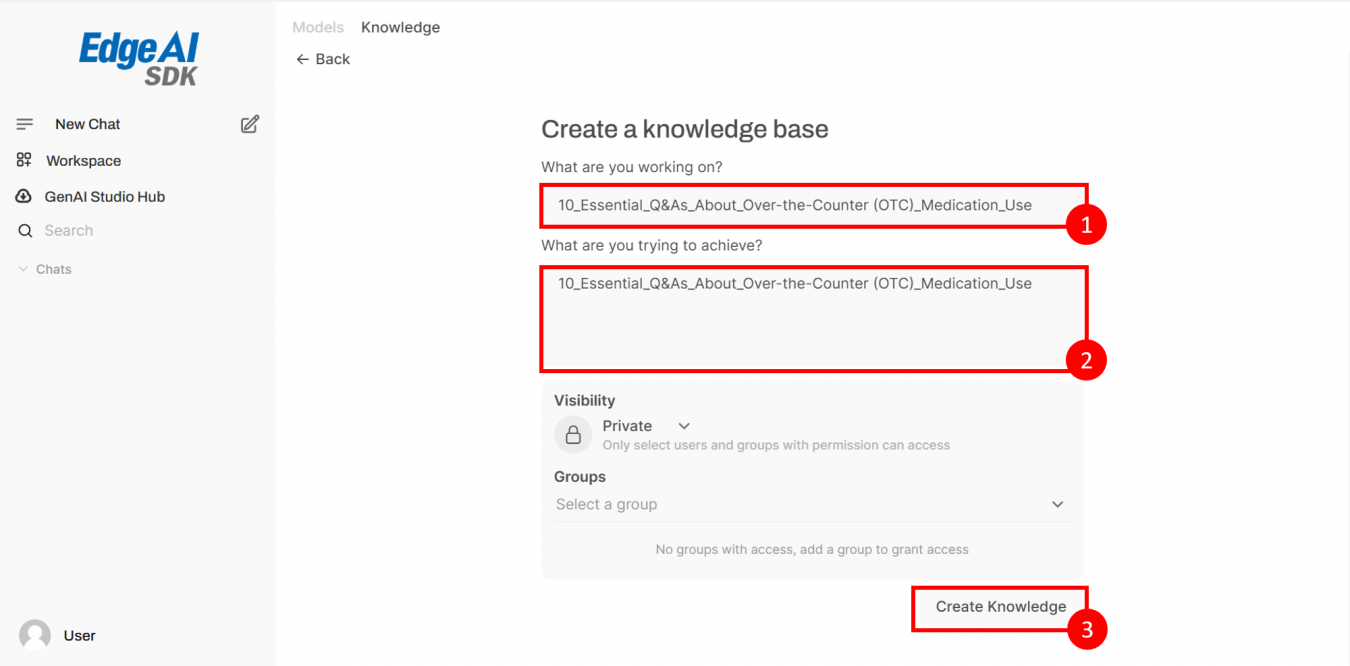
- Enter title and description.
- Click Create Knowledge.
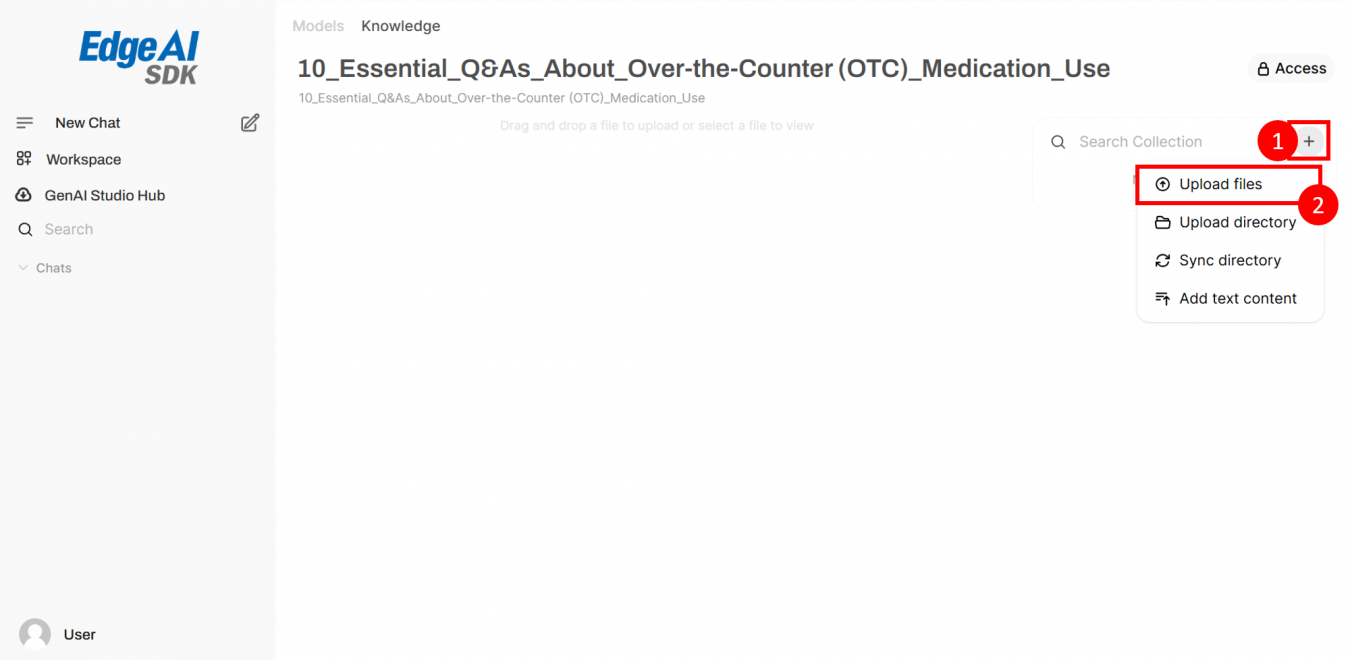
- Click + → Upload Files to upload.
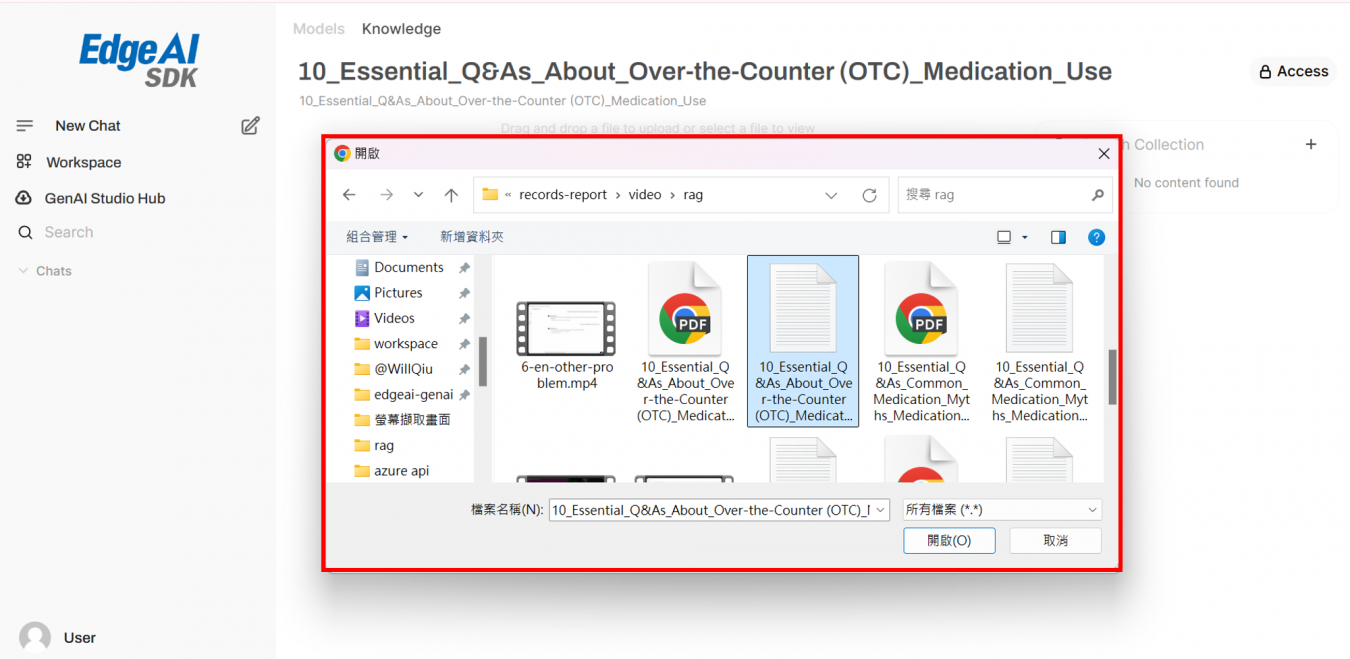
- Select files to upload.
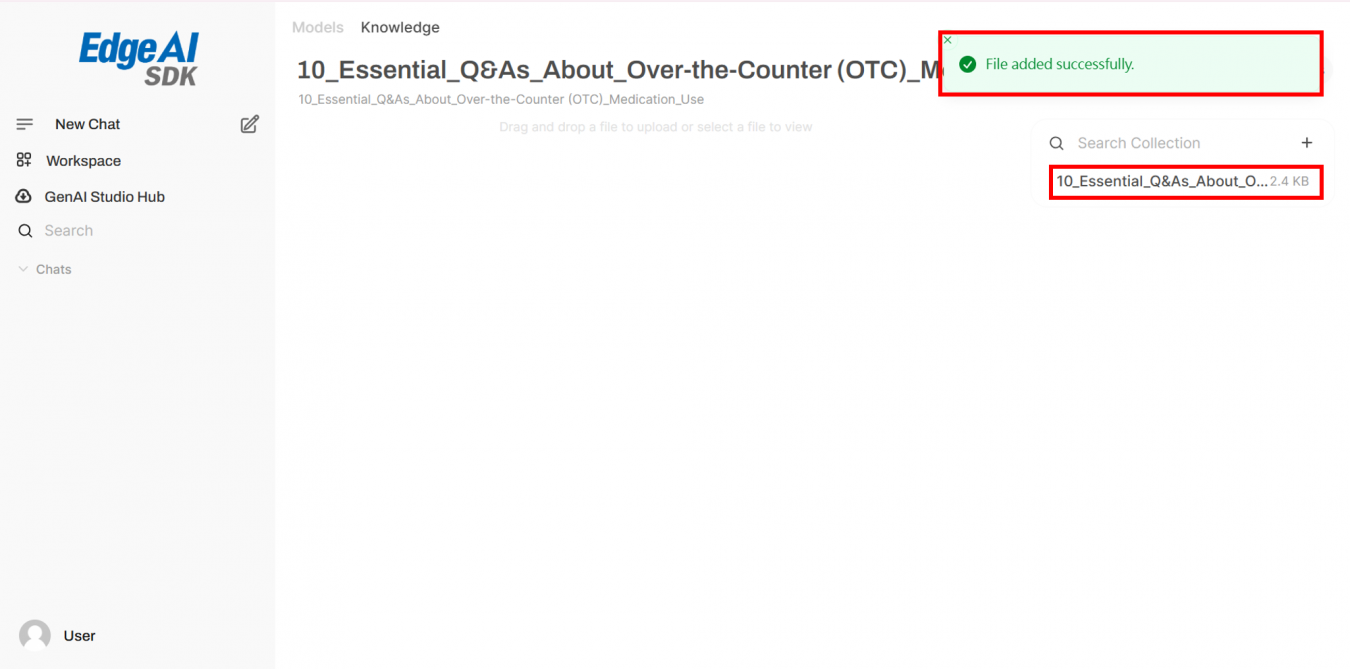
- Upload success notification appears.
Create a Chatbot Assistant with RAG
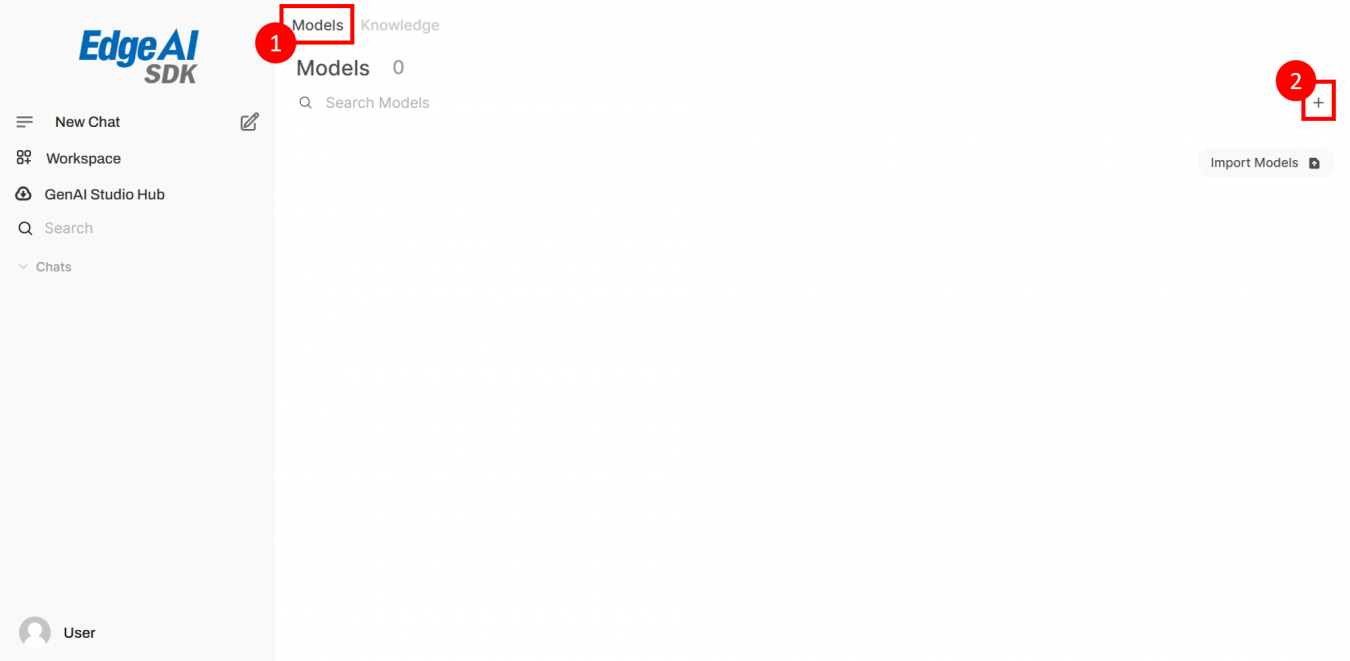
- Go to Models tab.
- Click + to add a new model.
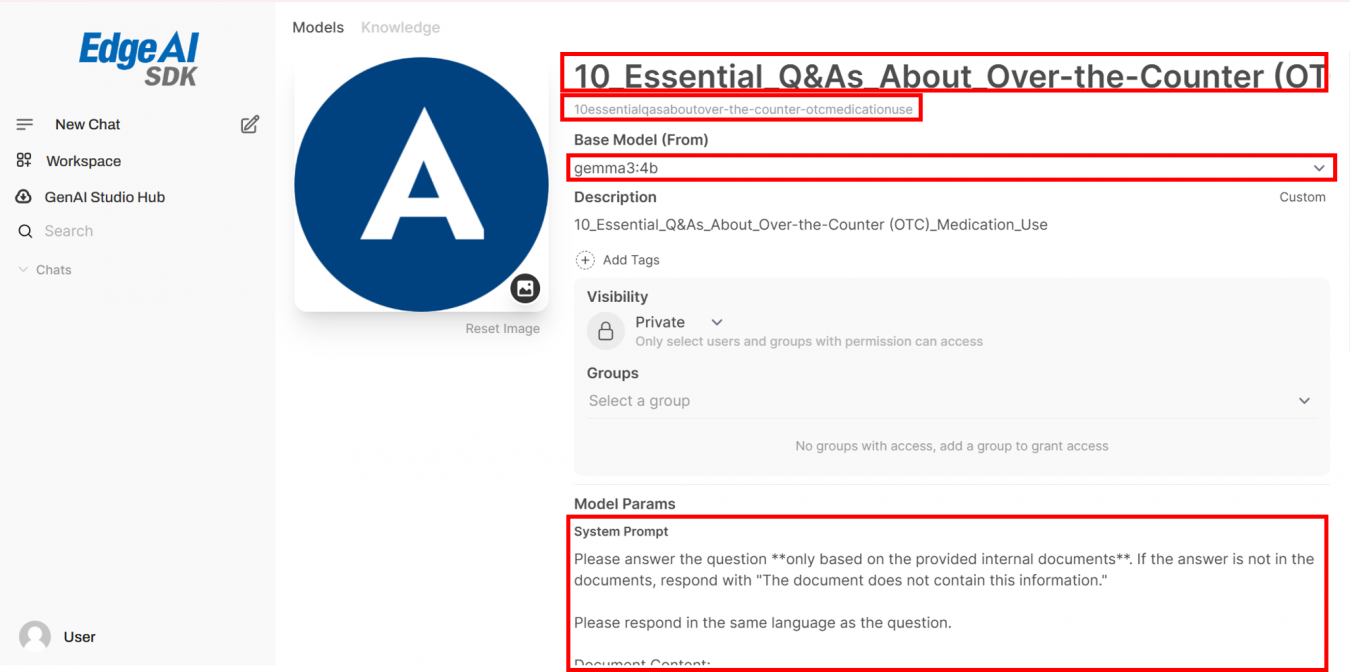
- Fill in Title, Subtitle, Base Model, and System Prompt.
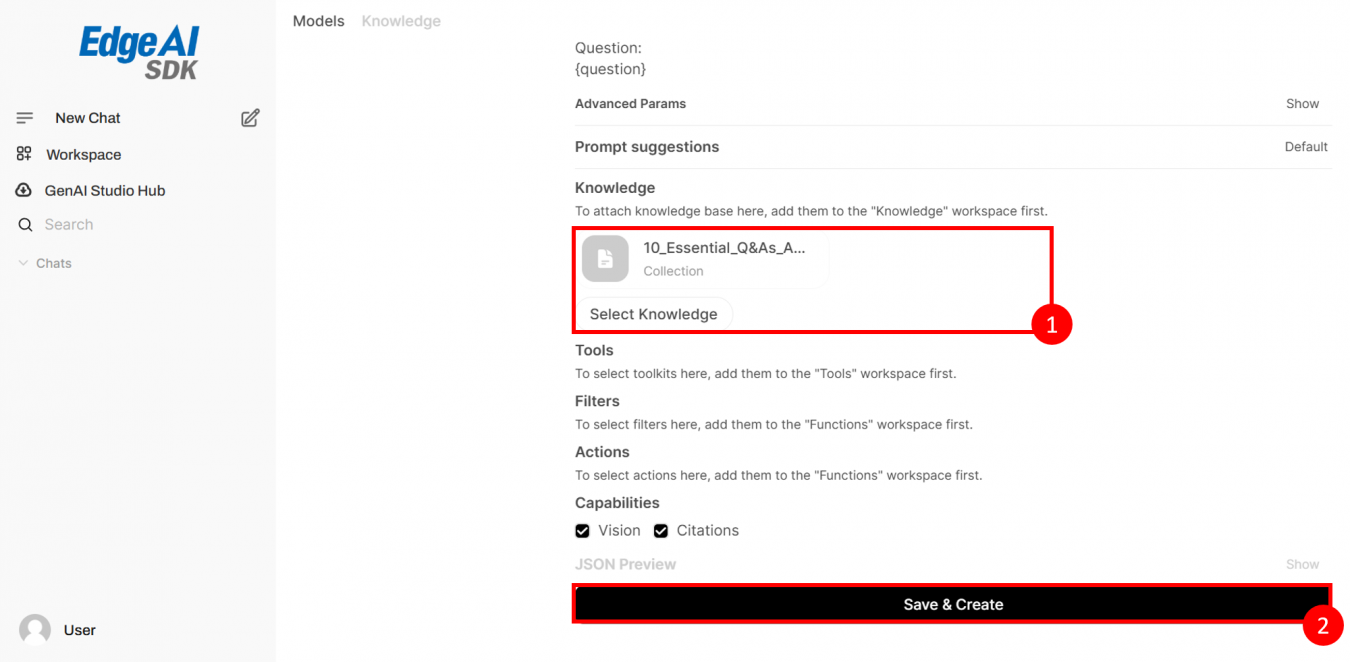
- Select the Knowledge you created.
- Click Save & Create.

- A success notification appears.
- Click model to start chat.
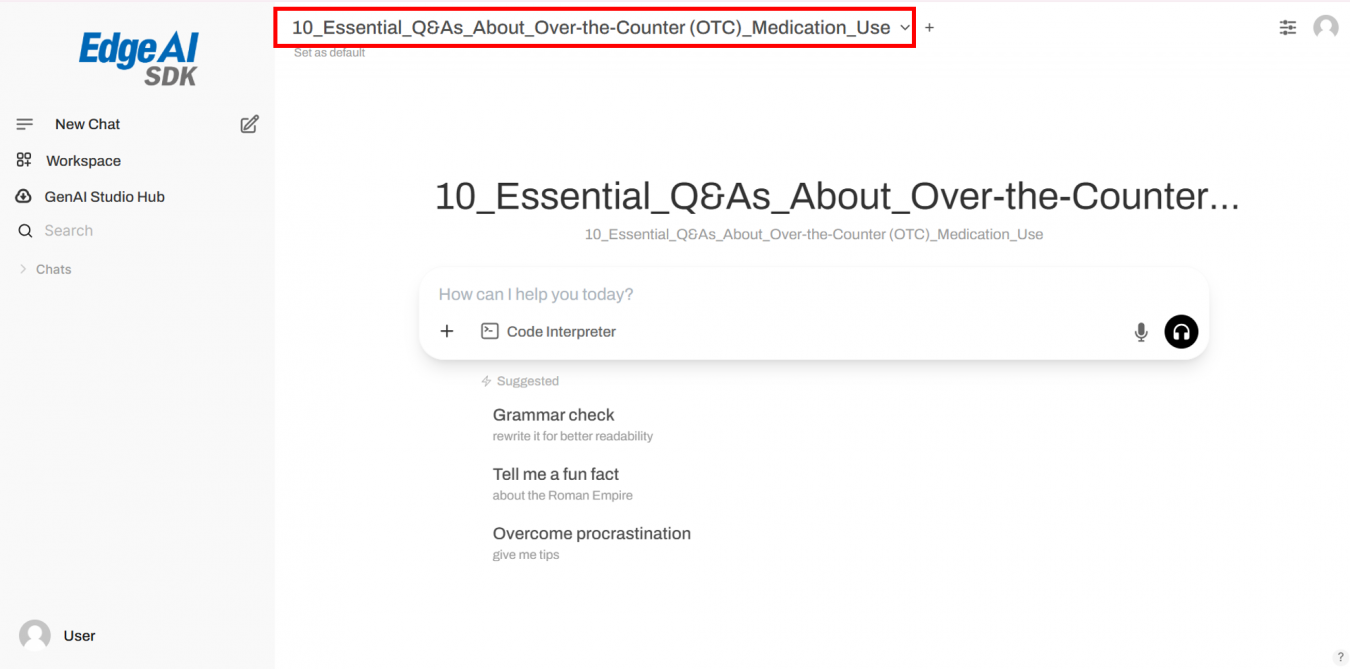
- The chat window shows the Knowledge model.
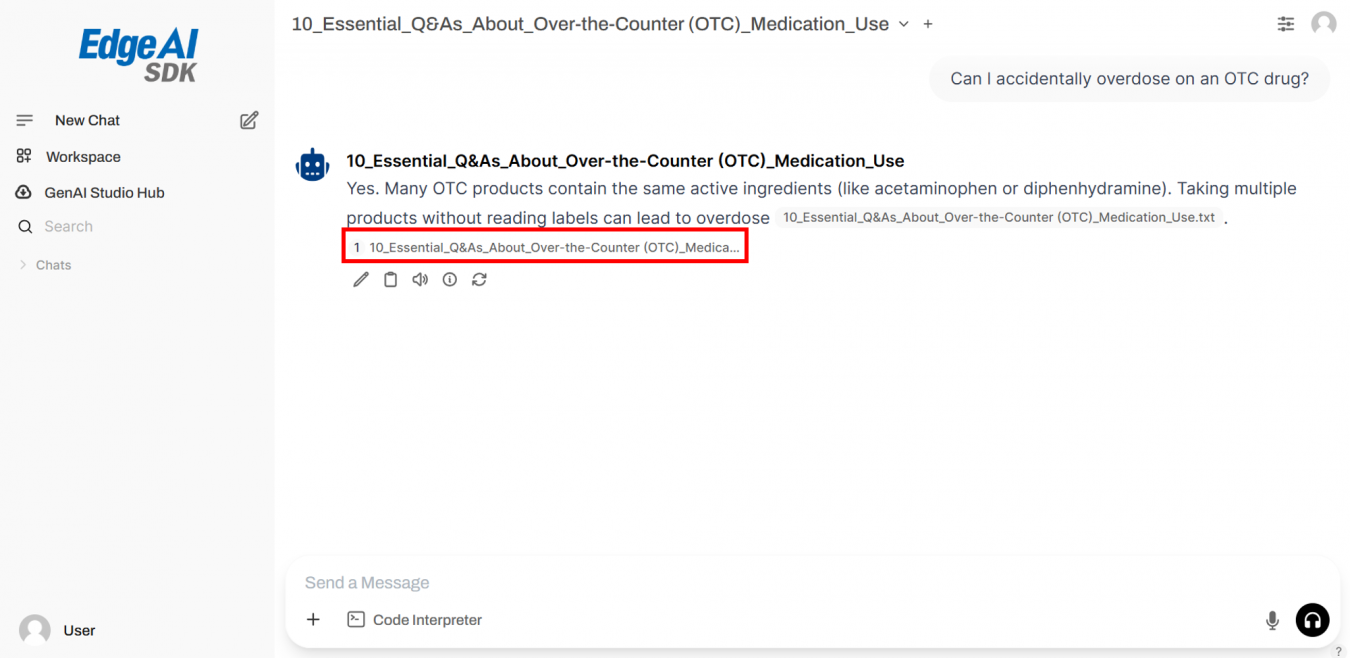
- Responses will include retrieved knowledge.
Text-to-Speech with Azure AI Speech API
1. Create an Azure AI Speech API Account
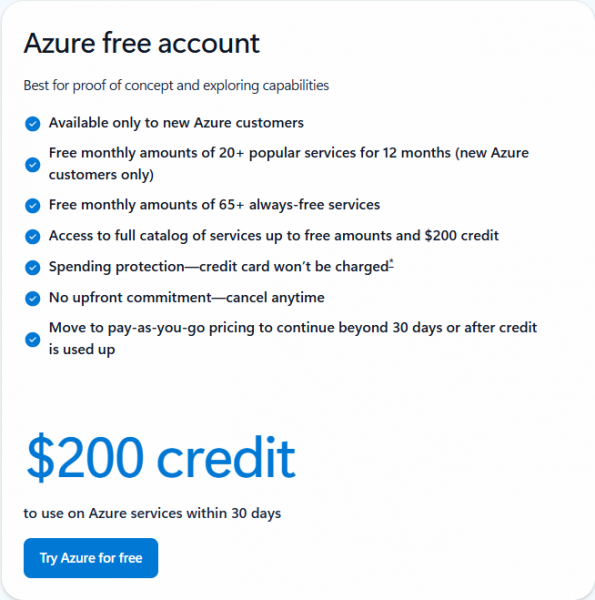
Get started with Azure’s free account: new users receive $200 credit for 30 days and free access to popular services.
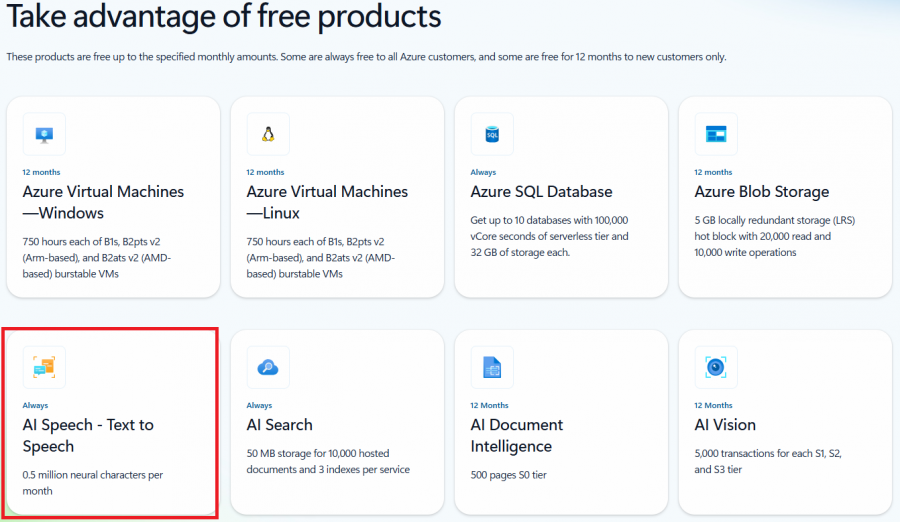
AI Speech – Text-to-Speech: 500,000 neural characters/month free
2. Set Up the Azure Speech
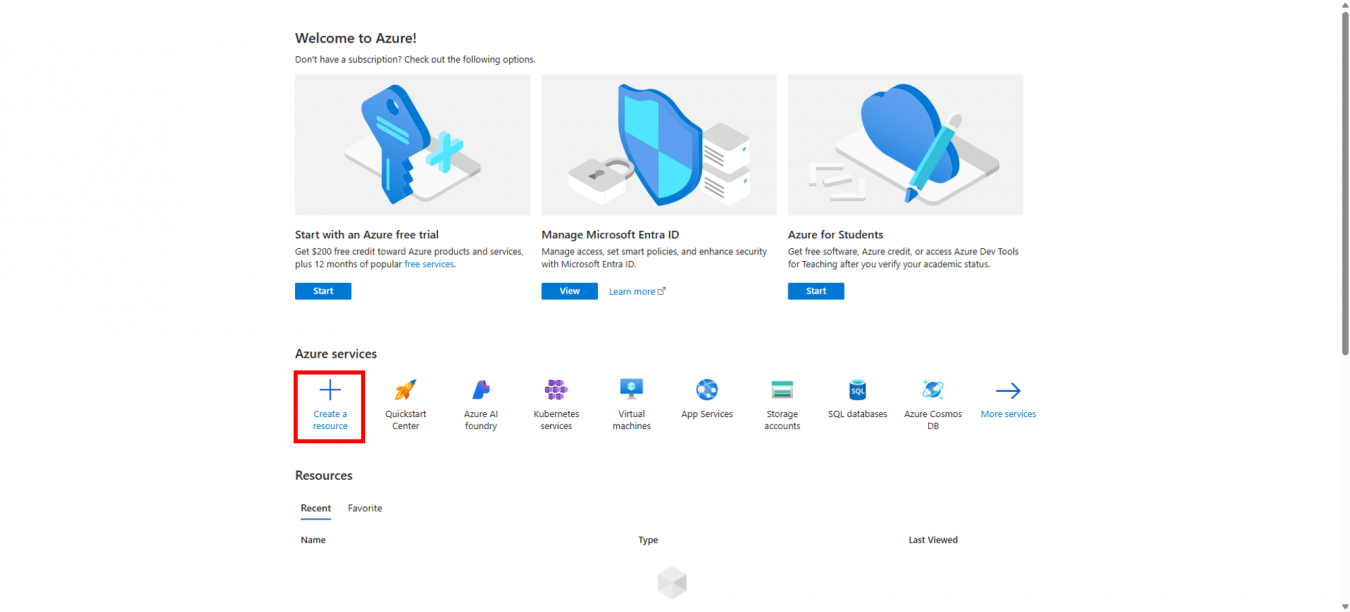
- Go to Azure Portal → Create a resource.
- Click AI + Machine Learning → Speech.
- Click Start → Create and fill in details:
- Subscription
- Resource Group
- Region
- Name
- Pricing Tier (Free F0)
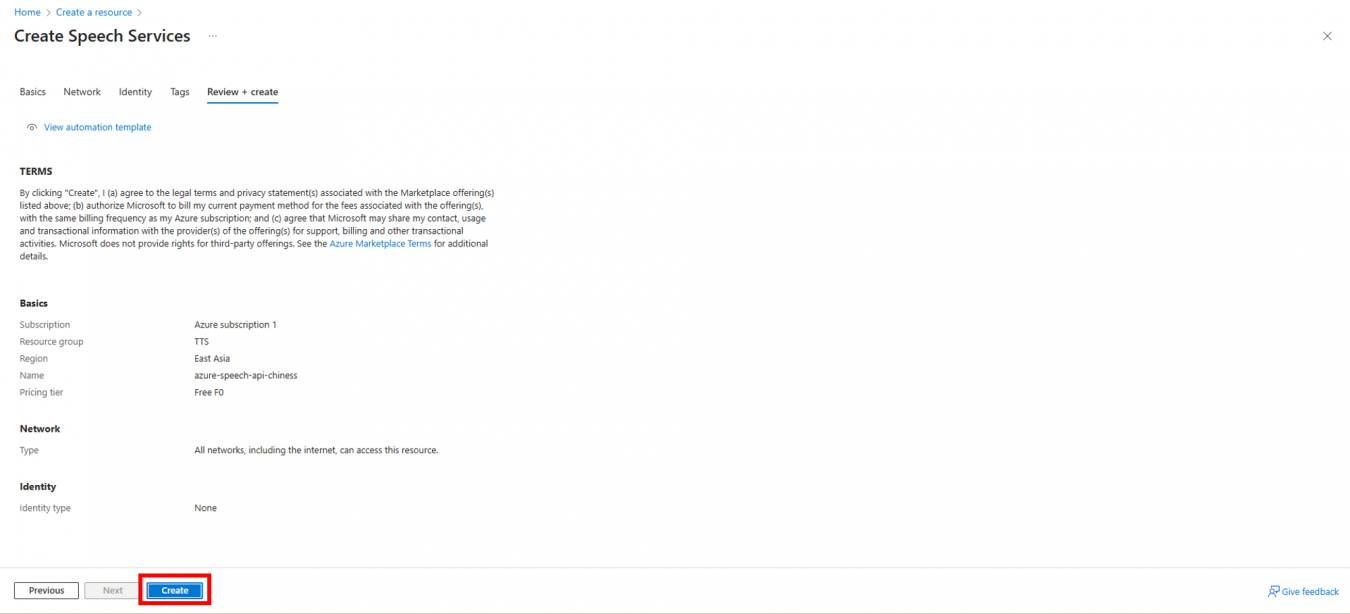
- Click Create and note Key1/Key2 and Endpoint URL for authentication.
3. Setup Azure Text-to-Speech in GenAI Chatbot
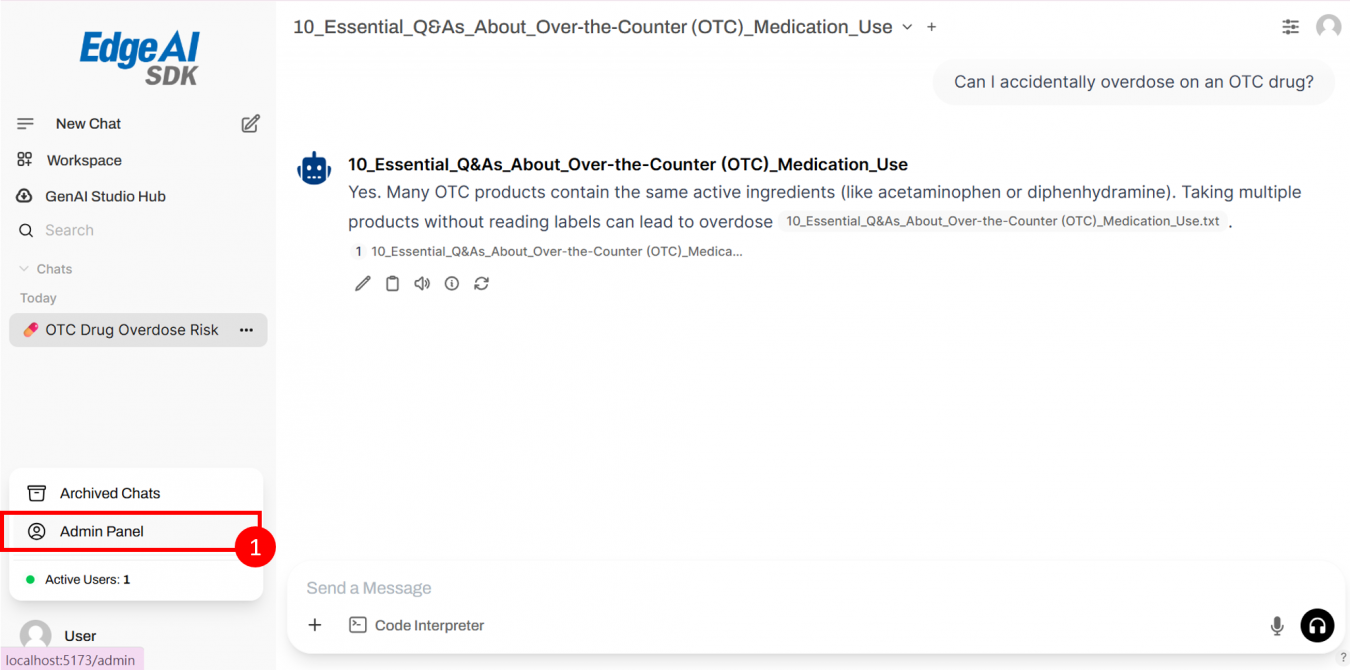
- Go to Admin Panel.
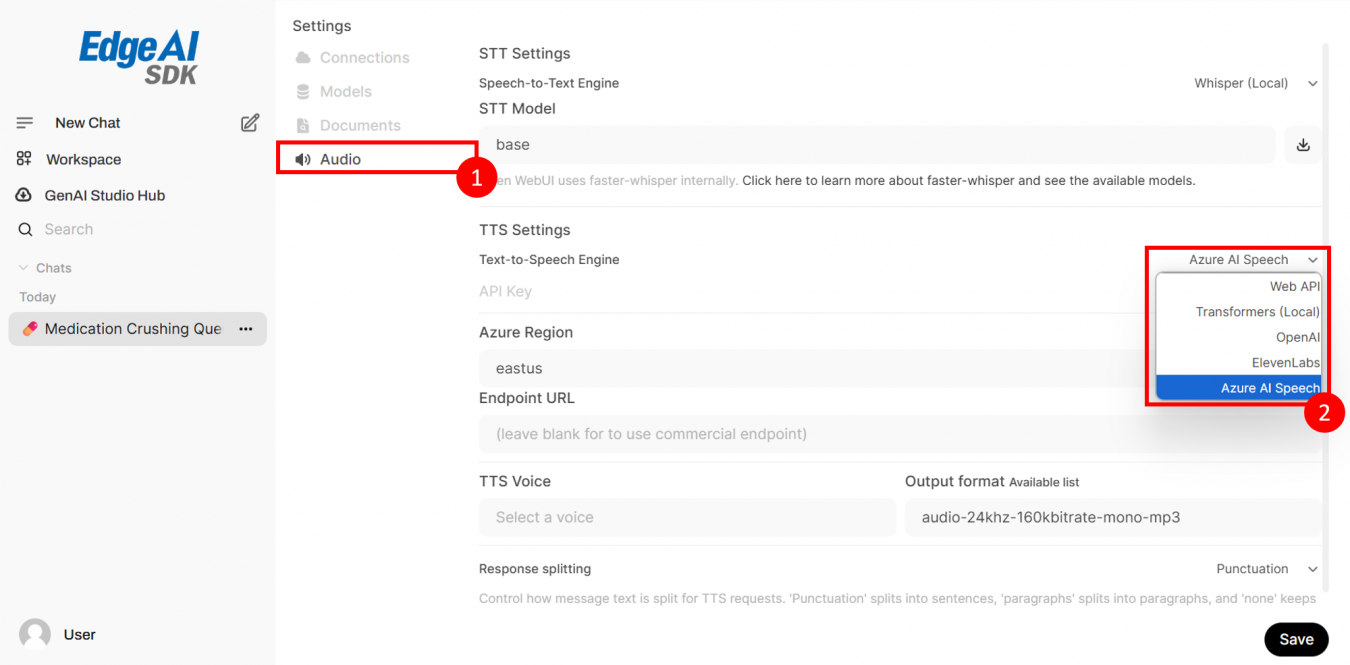
- Click Audio → Select Text-to-Speech Engine → Azure AI Speech.
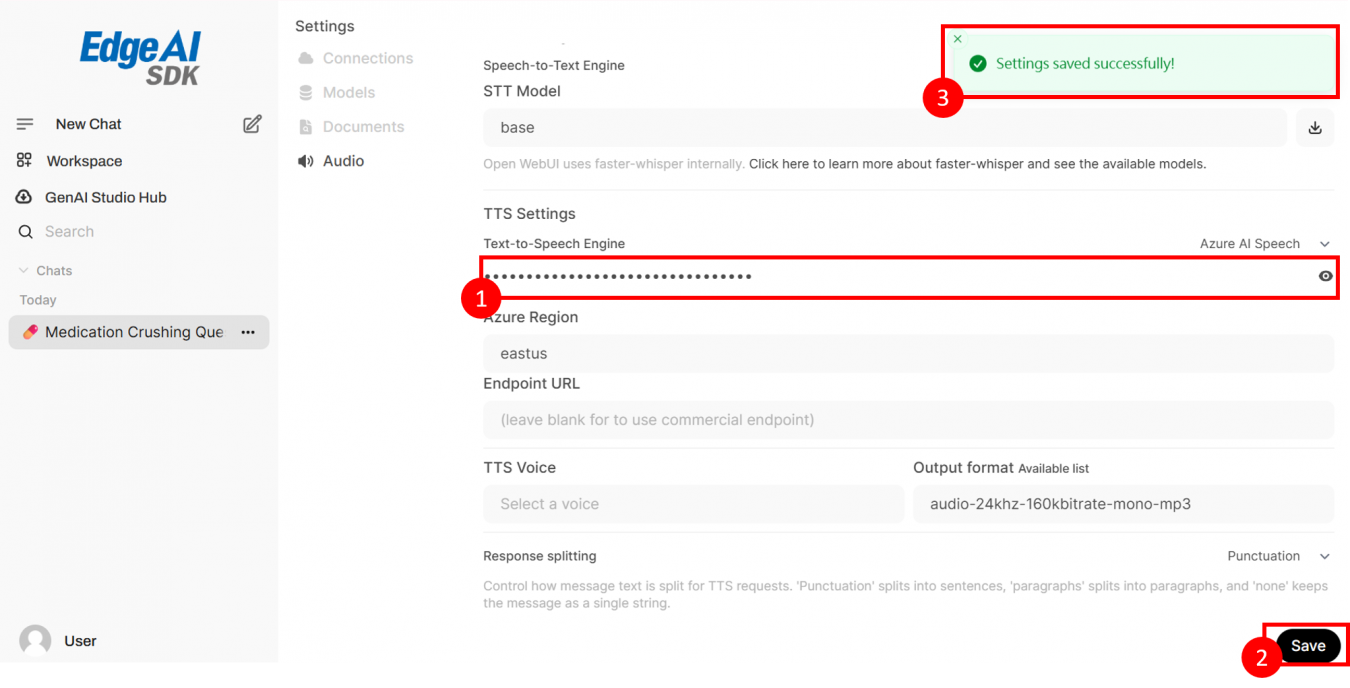
- Enter API Key, click Save.
- A success notification will appear.
Evaluate the SLM Response
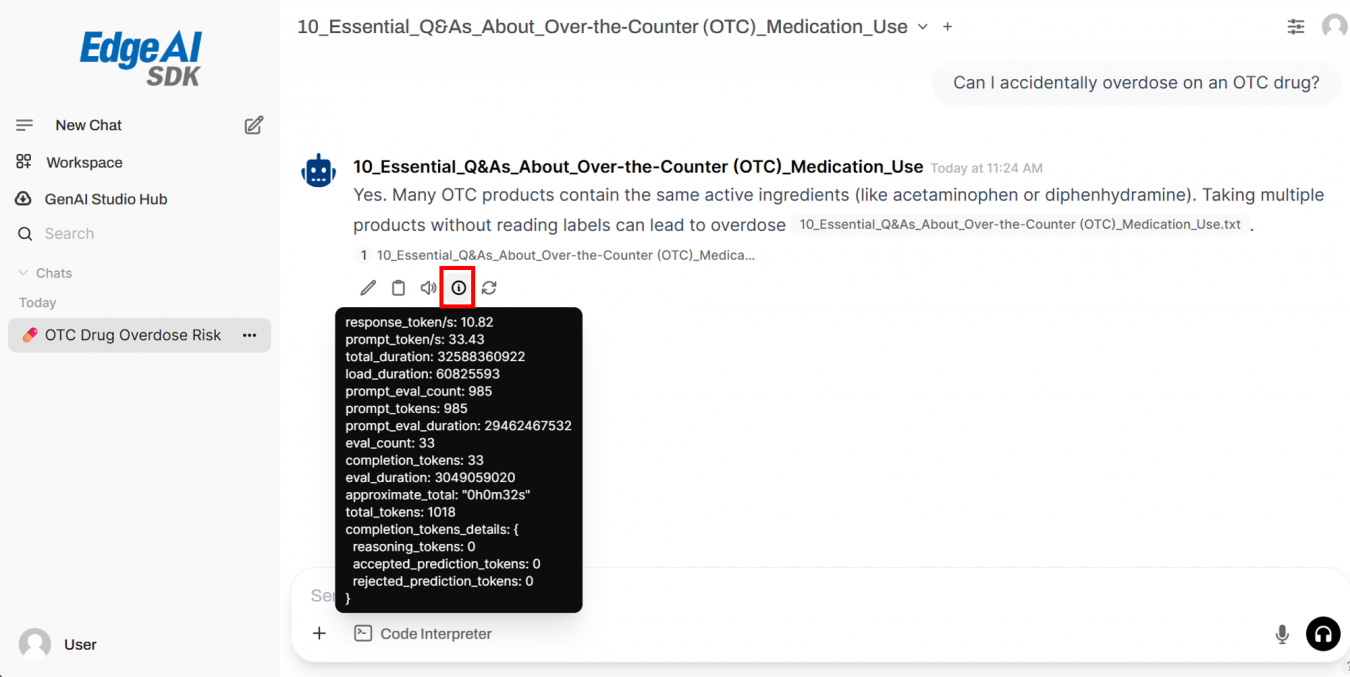
Each response includes a performance info button showing token count, speed, and computation time for real-time monitoring.
MCP Tools
1. A MCP Tool (Sample)
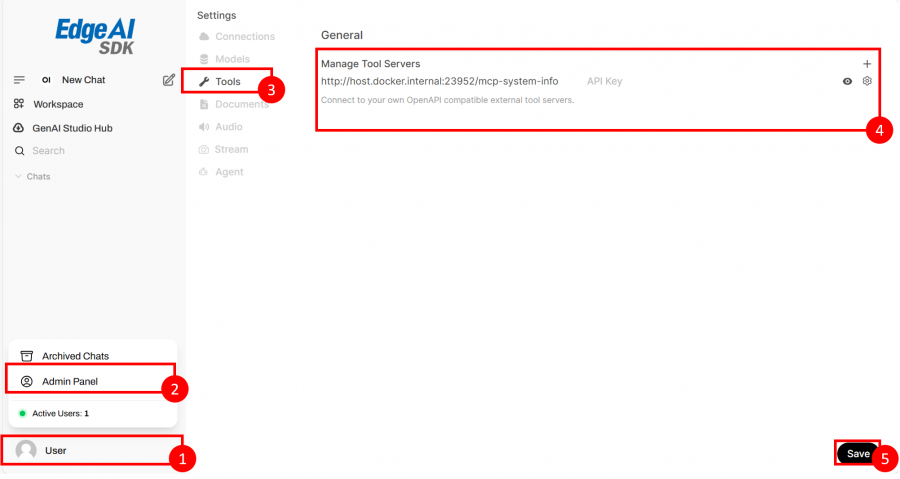
- Click User → Admin Panel → Tools.
- Ensure file-utils and mcp-system-info are listed.
- Click Save.
2. New a Chat with Tools
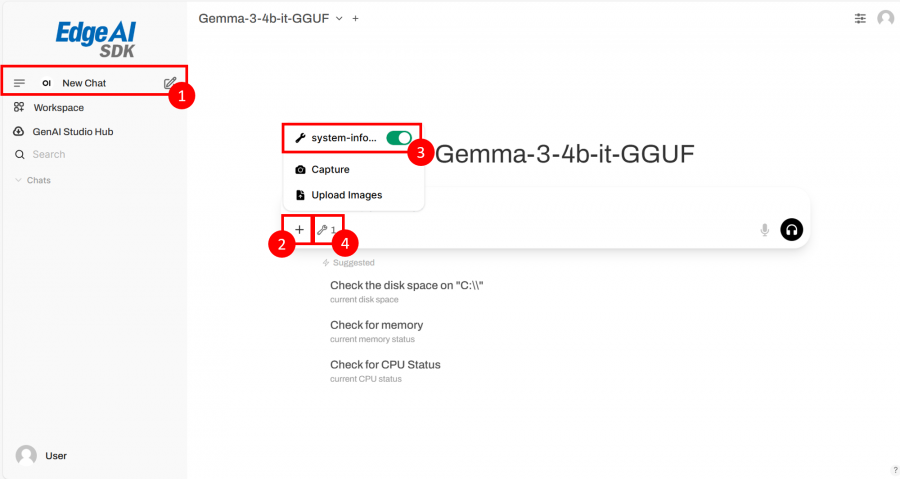
- Click New Chat → + → Select Tool (e.g., system-info).
- Tool icons appear next to + button.
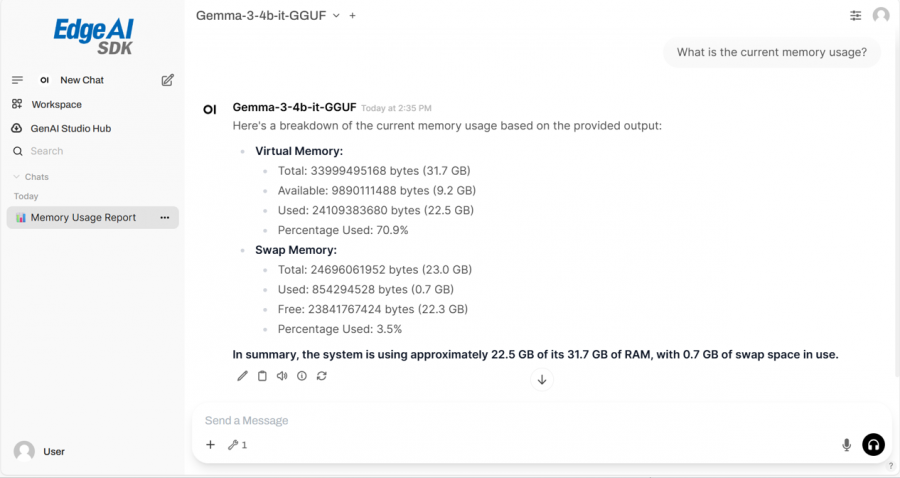
3. To get System Info by MCP Tool
Example: Ask “What is the current memory usage?”
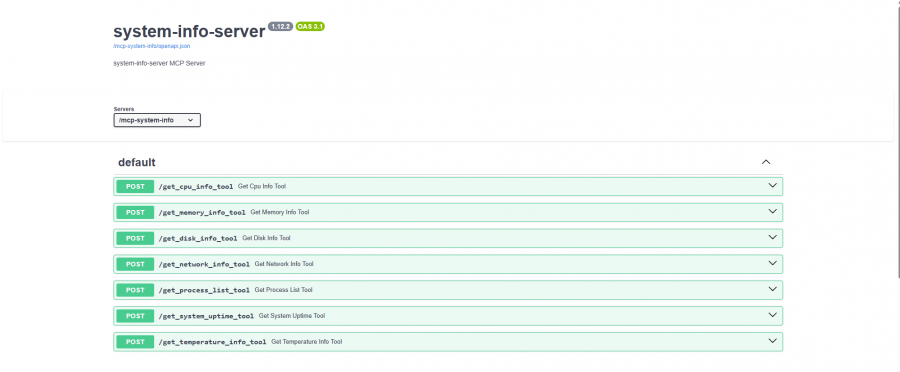
4. MCP Server APIs
MCP System-Info-Server Docs: http://localhost:23952/mcp-system-info/docs
Add a MCP Server
Example
Creating an Audio + RAG Chatbot for Medication Assistant
1. Configuring TTS with Azure AI Speech API
2. Create a Knowledge
3. Create a Chatbot Assistant with RAG (Knowledge)
4. Start a Voice Chatbot Assistant with RAG
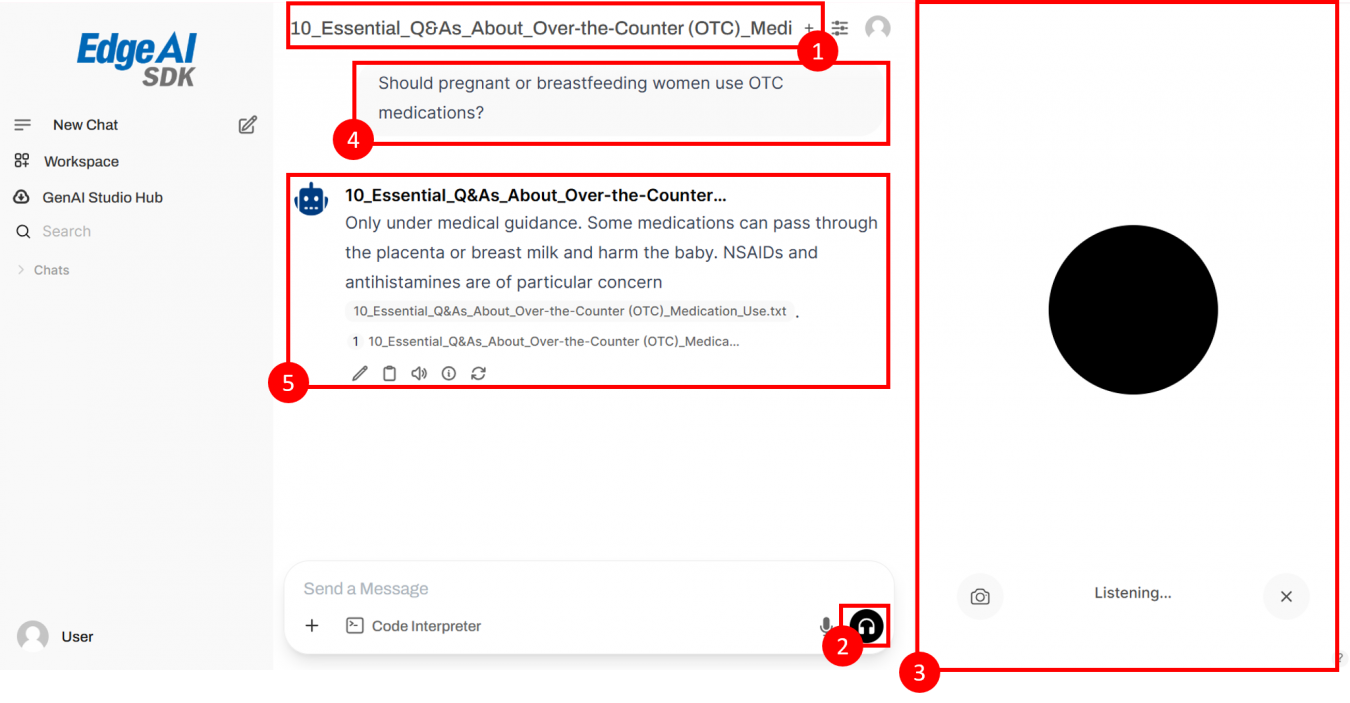
- Select RAG model.
- Click mic icon to start voice mode.
- The system shows listening status.
- Your speech converts to text.
- The assistant replies with voice output.