Q&A
Edge AI
How To convert an AI Model to run on edge inference runtime?
Converting an AI model to run on edge inference runtime is a crucial step in implementing complex AI applications on resource-constrained edge devices. This article will discuss this topic focusing on three platforms: Intel OpenVINO, Nvidia, and Hailo.
-
Intel OpenVINO platform
OpenVINO is a deep learning inference optimizer and runtime library developed by Intel. It is designed for Intel hardware (including CPUs, GPUs, FPGAs, and VPUs) to achieve optimal deep learning performance on these devices.
A key component of OpenVINO is the Model Optimizer, a powerful tool that can convert various deep learning models (such as TensorFlow, Caffe, and ONNX) into OpenVINO's IR (Intermediate Representation) format.
This IR model can then run on any Intel hardware that supports OpenVINO.
More info: Intel OpenVINO -
Nvidia platform
Nvidia offers TensorRT, a high-performance library for optimizing and running deep learning models. TensorRT can convert various deep learning models (such as TensorFlow, Keras, and ONNX) into a format that can be efficiently run on Nvidia GPUs.
This is particularly useful for applications that need to run AI models on edge devices (such as Nvidia's Jetson series).
More info: Nvidia TensorRT -
Hailo platform
Hailo specializes in edge AI processors, such as their Hailo-8 deep learning processor. Hailo offers an SDK that can convert TensorFlow and ONNX models into a format that can run on the Hailo-8 processor.
More info: Hailo AI
In general, converting an AI model to run on edge inference runtime involves a process of model optimization and conversion. Each platform provides their own tools and methods to ensure the model can run efficiently on their hardware.
How To evaluate AI performance of an Edge AI platform or AI Accelerator?
When evaluating AI performance, several factors need to be considered. These include the inference speed of the model (i.e., the speed at which the model makes predictions), the performance of the hardware (including CPU and GPU usage, memory usage, and power consumption).
The Edge AI SDK benchmark enables developers to comprehensively evaluate the performance of their AI applications on edge devices.
Through the Edge AI SDK, developers can easily establish an Edge AI environment, allowing them to quickly begin evaluating their AI applications on Advantech's Edge AI platforms with various AI accelerators.
How to Estimate If AI Computing Power is Enough?
Refer to this video
How to Know AI Computing Power on Various Platforms?
Refer to this video
How to Deploy Your AI Remotely?
Refer to this video
AI Model
Where to find AI Model for my AI platform?
The AI Model Zoo provides various pre-trained deep learning models. Developers can use these models to accelerate the development of their AI applications. Below is the relevant information about the AI Model Zoo for Intel's OpenVINO, Nvidia, and Hailo platforms.
- Intel's OpenVINO: Open Model Zoo
- Nvidia's AI Model Zoo: Nvidia NGC
- Hailo's AI Model Zoo: Hailo AI Zoo
No matter which platform you are developing AI applications on, you can find a suitable AI Model Zoo to accelerate your AI application development.
System or Devices
EAI-3100 issue
Issue: Ubuntu fails to start after installing the EAI-3100/EAI-2100 driver.
Why:
In certain instances, specific software within the Ubuntu system has been updated (e.g., libegl1-mesa-dev, mesa-va-drivers, etc).
Due to version conflicts with the EAI-3100/EAI-2100, Ubuntu may fail to start after installation.
How To:
-
- Preparation
Prepare a USB storage containing the patch:
Download: EAI_3100_2100_Patch-1.0.0-Ubuntu_22.04-x64
- Step 1: Enter Ubuntu Recovery mode
After BIOS initialization, press ESC to enter recovery mode.
Select “Advanced options for Ubuntu” →

Choose the highest version with "(recovery mode)"

Select network and choose "Yes"
Select root to enter root shell
- Step 2: Mount the USB
Enter "fdisk -l" to find the location of the USB drive.
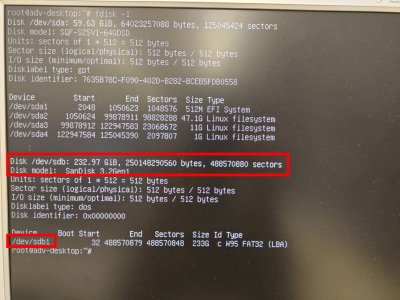
For example, the usb storage location is /dev/sdb1 (as shown in the second red box in the image).
Enter the following commands to mount the USB:
$ fdisk -l        # find USB location (e.g., /dev/sdb1)
$ mkdir /mnt/usb
$ mount /dev/sdb1 /mnt/usb/
$ cd /mnt/usb
- Step 3: Patch
$ chmod +x EAI_3100_2100_Patch-1.0.0-Ubuntu_22.04-x64.run
$ ./EAI_3100_2100_Patch-1.0.0-Ubuntu_22.04-x64.run
$ reboot