User Manual 2.0
Install
- Not Using (
sudo suorsudo) to install - An active Internet connection is required
- Don't
apt upgradebefore installation
$ tar zxvf Edge_AI_SDK-installer-<version>.tar.gz
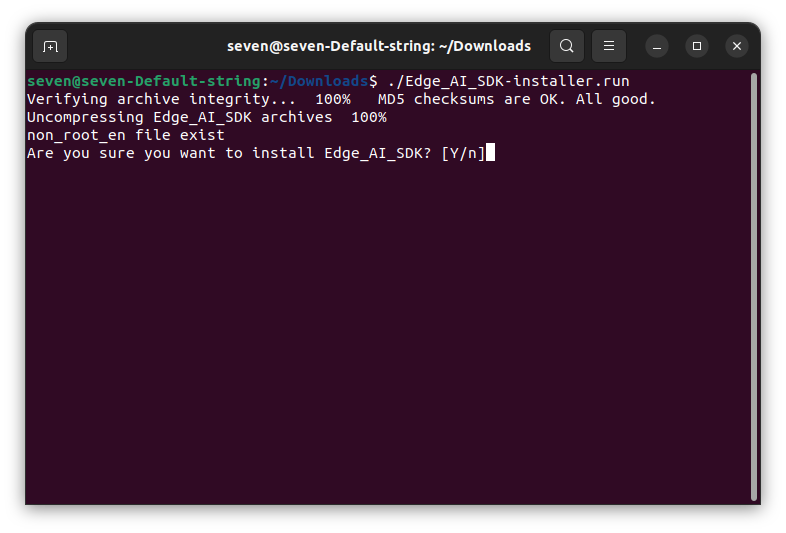
$ ./Edge_AI_SDK-installer.run
-
License Agreement

-
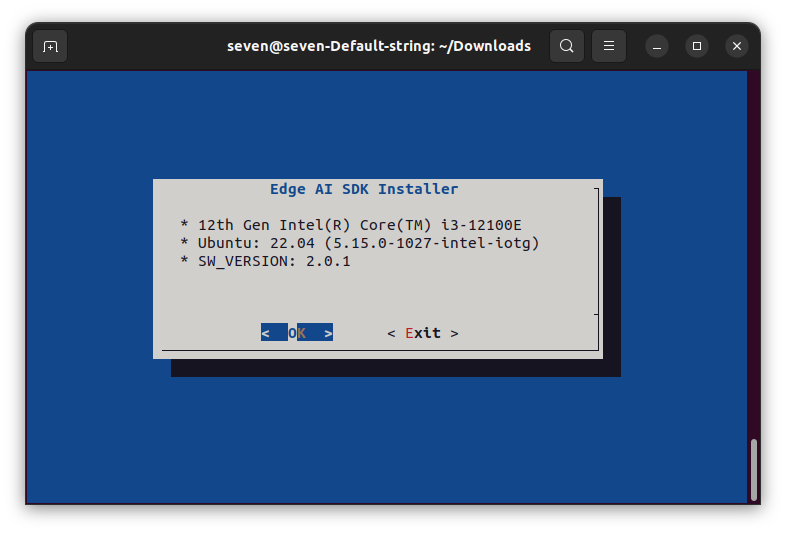
System Information (by target platform)
-
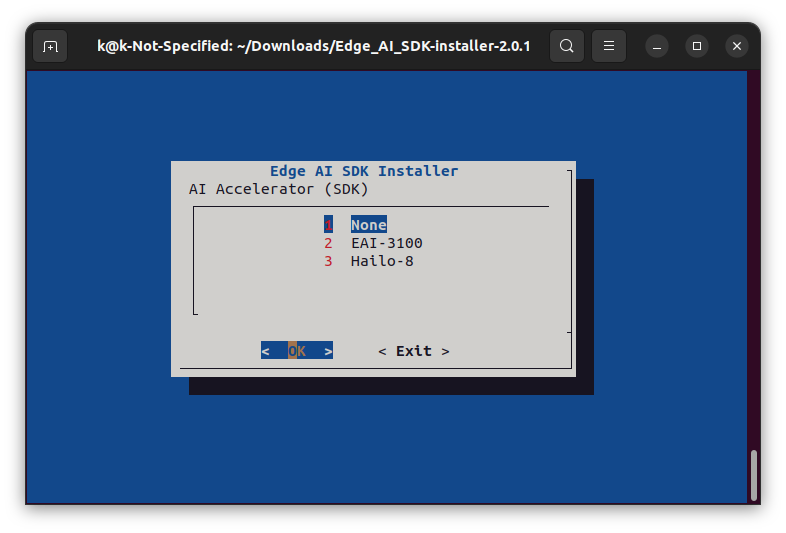
Select AI Accelerator SDK
Activation
-
User Information
Please fill in the required information one by one, especially a correct email.
The following activation will need an available email. Then press the Next button to proceed.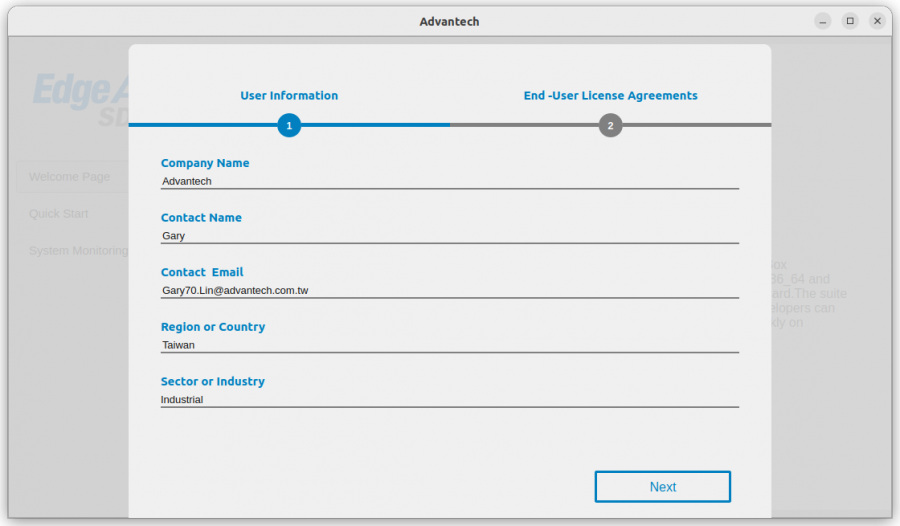
-
License Agreement
Please review EULA and then press the Activation button if the content is agreed.
-
Activation Code
If internet is available, a dialog will pop up to ask you to enter a token for activation.
Uninstall
cd /opt/Advantech/EdgeAISuite
./unInstall.sh
Quick Guide
Edge AI SDK caters to users who are comfortable with the machine learning (ML) experience.
It can quickly evaluate computing performance for the CPU or GPU, and provides runtime results inferenced with ML.
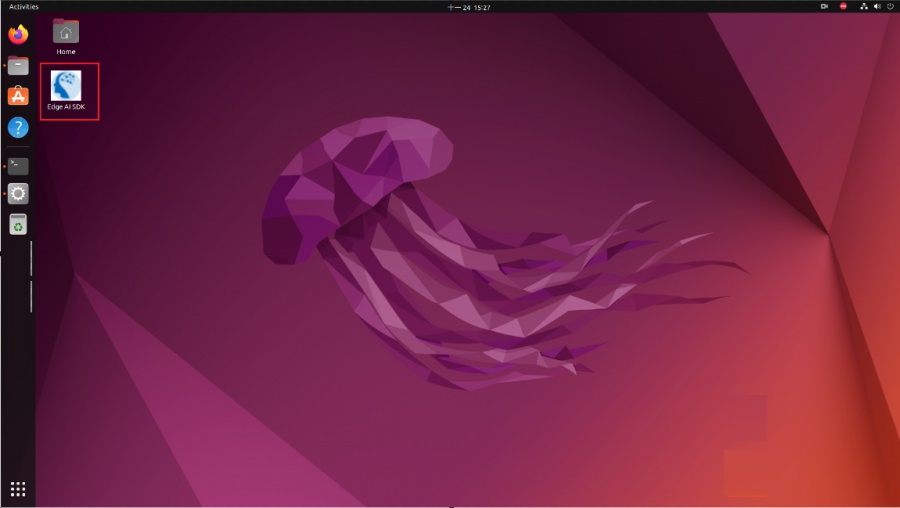
Double click the icon (in the red box) on the Desktop to start the Edge AI SDK App.
Quick Guide Video

How to Quickly Start AI Inferences
Step 1. Go to the Quick Start page.
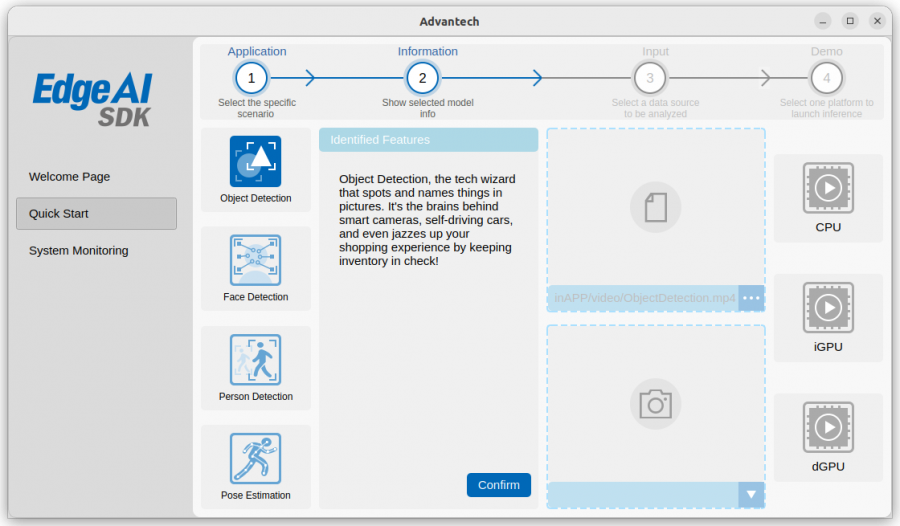
Step 2. Choose one application you want to activate and then confirm inference info.
(1. Object detection, 2. Face detection, 3. Person detection, 4. Pose estimation)
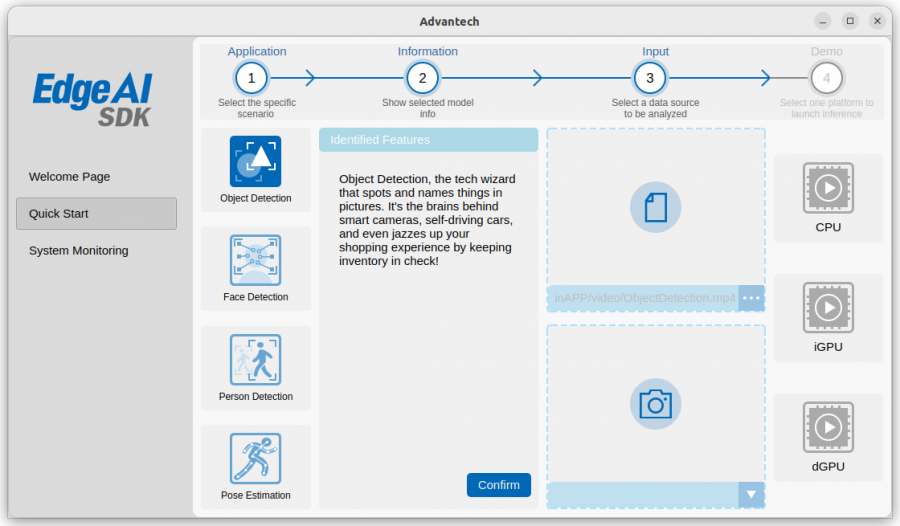
Step 3. Choose your video source which could be video clips or the USB Camera.
-
Video (Note: .MP4 only)
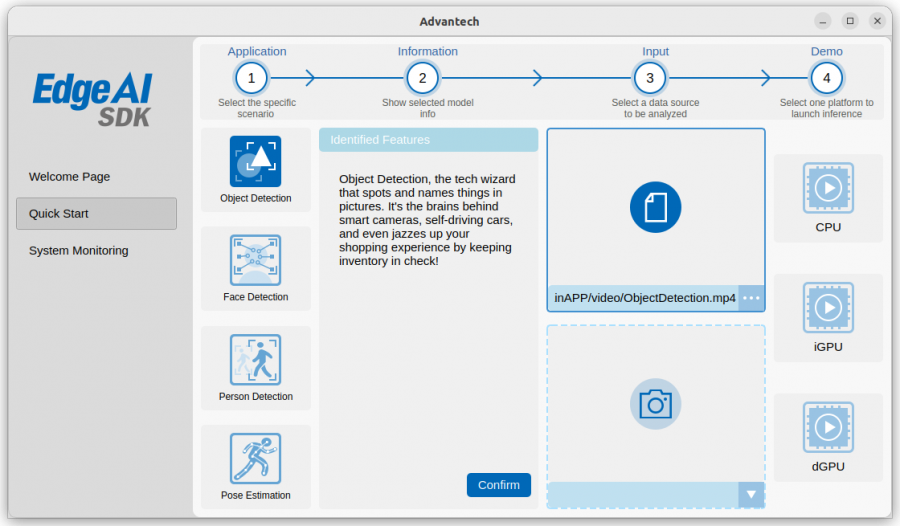
-
USB Camera
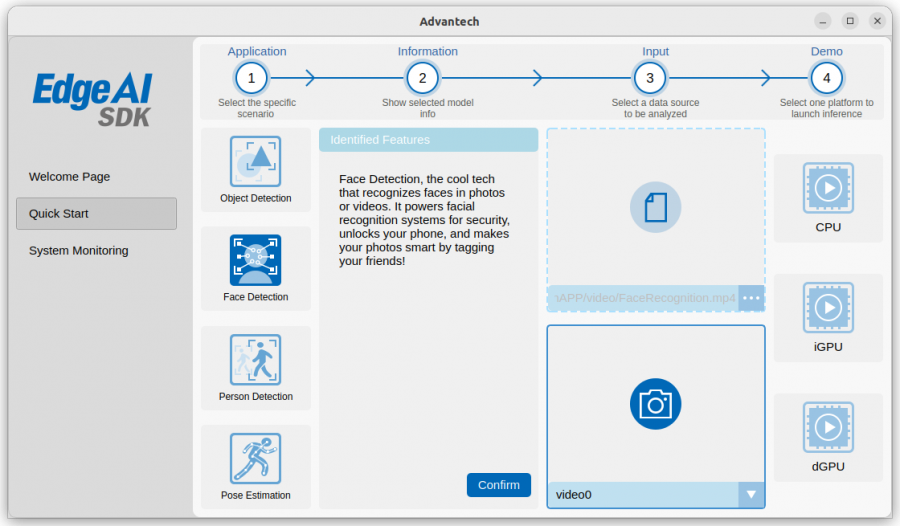
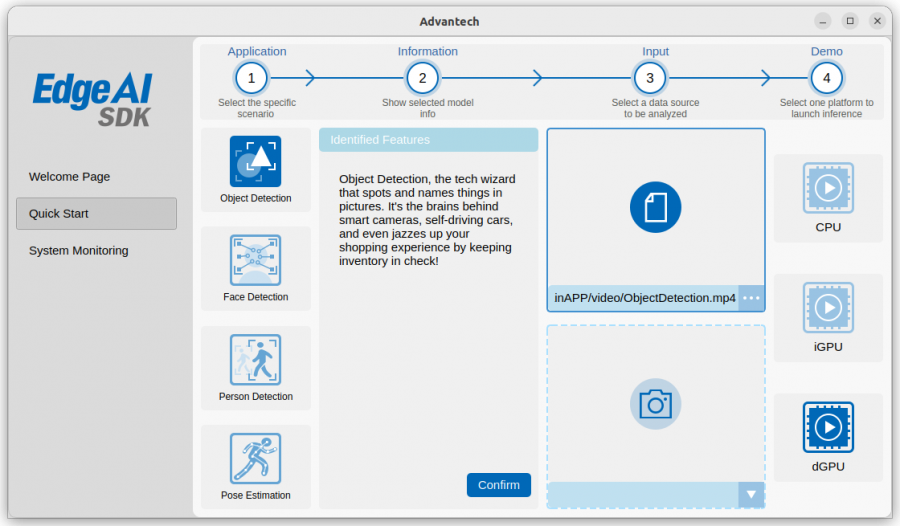
Step 4. Choose one of the acceleration chipsets to execute selected inference application.
Note: The available accelerator chipsets depend on your AI system and accelerator card.
Step 5. Another window will pop up to show the AI inference.
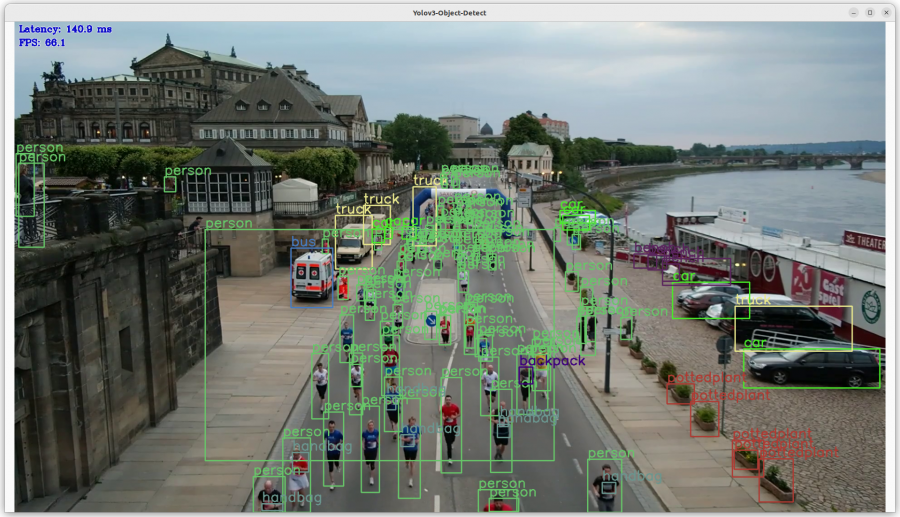
Object Detection
Object Detection is a computer vision task in which the goal is to detect and locate objects of interest in an image or video.
The task involves identifying the position and boundaries of objects, and classifying them into different categories.
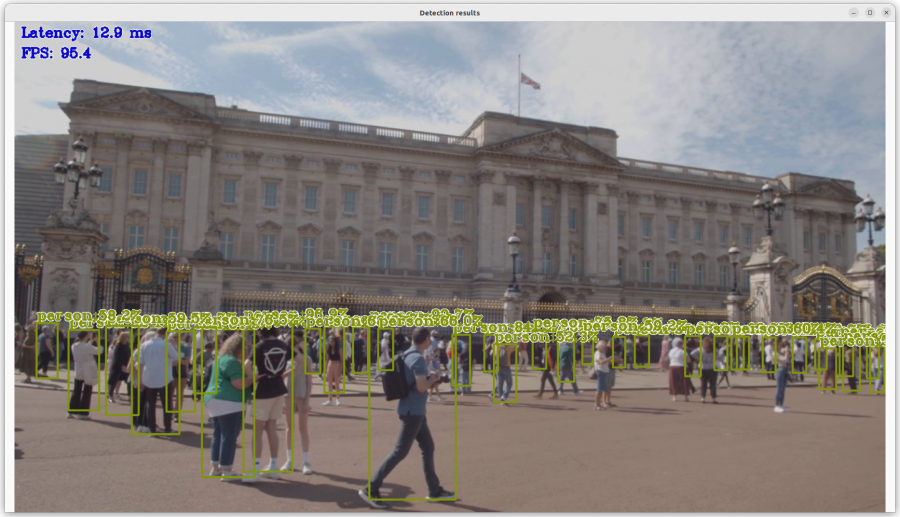
Person Detection
Person Detection is based on object detection systems that can classify detected objects as human.
It is used in many different sectors: security, insurance, nursing, health, and production.
Technologies offer opportunities that can significantly increase customer satisfaction.
Face Detection
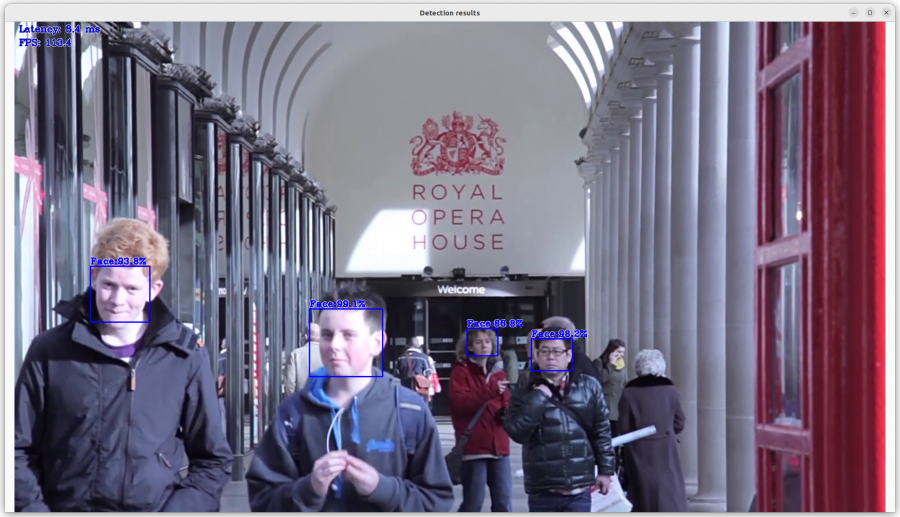
Facial Detection is the task of making a positive identification of a face in a photo or video image against a pre-existing database of faces.
It begins with detection - distinguishing human faces from other objects in the image - and then works on identification of those detected faces.
Pose Estimation
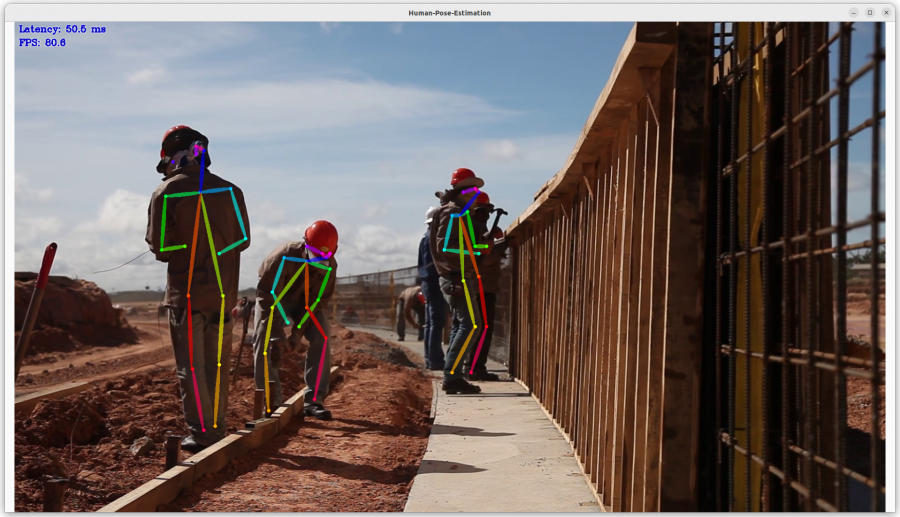
Pose Estimation is a computer vision task where the goal is to detect the position and orientation of a person or an object.
Usually, this is done by predicting the location of specific keypoints like hands, head, elbows, etc.
Monitor AI System Performance
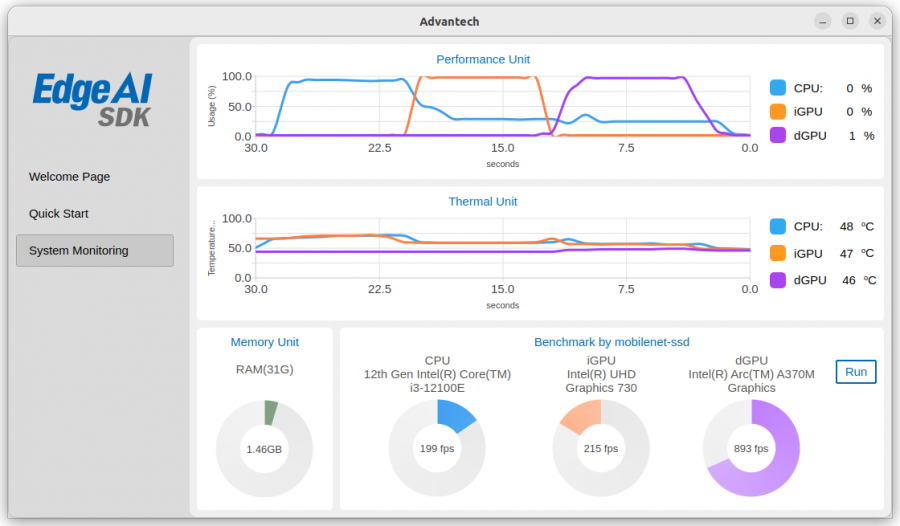
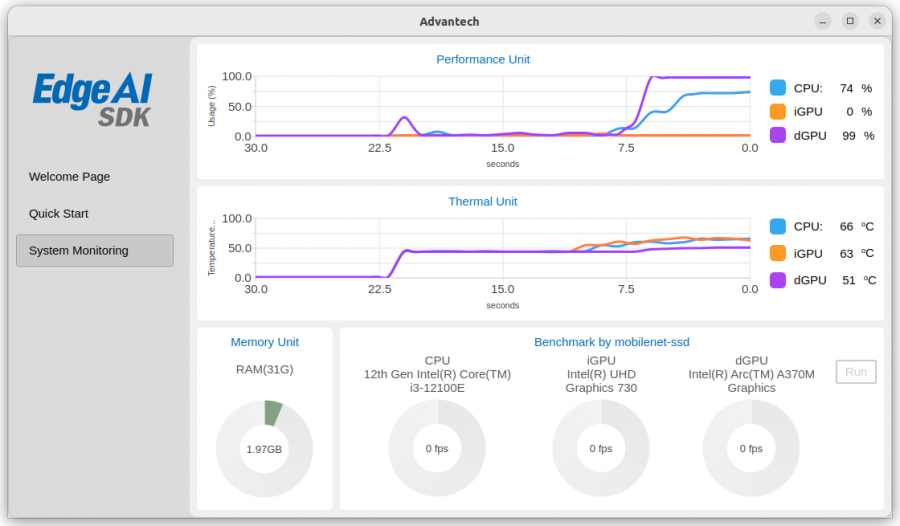
Go to the System Monitoring page.
This page shows payload and temperature for each chipset.
Evaluate the AI Performance
Go to the System Monitoring page. Click the Run button to evaluate each chipset performance.
Wait for a few seconds to get FPS results.